
To use AI for pentesting, define an authorized target, prepare the execution environment, give the agent enough application context to choose useful tests, and review the underlying evidence before accepting a finding. In Penligent, that means creating a project, following the Agent Console and task queue, inspecting Tool Results and Key Findings, verifying risks or candidate attack paths, and exporting a report that an engineer can actually reproduce.
This walkthrough follows the Penligent User Guide dated October 23, 2026, with its current interface labels and a project-creation screenshot. Alongside the product steps, you will find an engagement brief, evidence-review criteria and a runnable offline authorization exercise. Start with a small authorized target and work through the complete process before expanding the engagement.
The workflow at a glance
| ステージ | What you do in Penligent | What to check before moving on |
|---|---|---|
| Prepare | Install the matching build and save a Python Executable Path. | The interpreter exists on the machine where tools will run. |
| Create | New Project → Project Name, Test Target and Skill Selection → Confirm and Create Project. | The exact target and intended testing actions are authorized. |
| Direct | Use Agent Console for application context and follow-up instructions. | Constraints are understood; independently enforce critical limits. |
| Observe | Review Agent Work Status, Target Overview and Tool Results. | Tasks actually ran and produced relevant output. |
| 検証 | Inspect Key Findings and, where appropriate, use Verify or Attack Graph verification. | The evidence supports the specific security conclusion. |
| 届ける | Export a single risk or the project report. | The downloaded document has reproducible evidence and no unnecessary secrets. |
| Retest | Use Verify again for an asset, or create an approved scheduled plan. | The same boundary is checked against the fixed deployment. |
A useful first engagement is a small staging application you own, with disposable test data and two accounts whose permissions are known. The objective is to understand one complete path from target to evidence to remediation. A large risk count is a poor substitute for being able to explain a single finding.
Set the scope before creating the project
Write down the target, permitted techniques, test window, exclusions and stop conditions before tool execution. NIST SP 800-115 treats planning, conducting tests, analyzing findings and mitigation as connected activities. For an AI-assisted engagement, those decisions also determine which actions you may delegate and which require an operator to intervene.
A domain in the target field is an address, not an authorization boundary. Permission to test staging.example.com does not imply permission to test the parent domain, every discovered subdomain, a payment provider or a CDN. Likewise, a link found during discovery is not permission to follow it with an active test. Record third-party dependencies separately and restrict testing to systems and actions the owner has approved.
# Example engagement record — not a Penligent import schema
engagement: staging-invoice-review
allowed_hosts:
  - staging.example.com
excluded_actions:
  - production-data-download
  - real-email-or-payment
  - destructive-tests
window: "owner-approved start and end, with timezone"
request_budget: "owner-approved aggregate limit across tools"
accounts: "two dedicated test accounts in separate test tenants"
stop_when:
  - unexpected service degradation
  - redirect or discovery reaches an unapproved host
  - evidence contains real customer data
contact: "named owner and emergency contact"
Store this record with the engagement evidence. You may summarize it in Agent Console, but a natural-language instruction does not itself enforce a network allowlist, a request limit or a data-retention policy. The October 23 guide documents context messages and task interruption; it does not document a scope-file importer or a universal policy engine. Use your test environment, tool settings and network controls for the boundaries that must hold even if an agent makes a poor decision.
Define what counts as a completed test as well. For an invoice authorization review, success means showing that one approved test user can retrieve their own synthetic invoice and cannot retrieve the other test tenant’s invoice. It does not mean finding a particular number of issues. This distinction prevents a quiet, correctly protected application from being mistaken for a failed engagement.
Install the correct build and configure Python
The guide recommends Kali Linux. It lists Windows x64, macOS ARM, and Linux AMD64 or ARM64 builds. Choose the package for the operating system and processor you actually use; the guide does not establish support for Windows ARM or Intel macOS. For Windows, download the matching .exe installer and double-click it. If Windows shows a security warning, confirm that the download comes from a trusted source before continuing, as the guide instructs. For macOS, open the .dmg, drag Penligent into Applications, and launch it from Applications. For Linux, choose the AMD64 or ARM64 .deb package and install that downloaded file. Obtain the installer from the official distribution route and confirm its provenance before running it. These platform and installation details are documented on page 1 of the October 23 guide.
# Linux only: replace the placeholder with your downloaded package filename.
sudo dpkg -i ./penligent.xxx.xxx.deb
At first use, enter the full interpreter path in Python Executable Path, or choose it with the folder control, then click Save. Cancel discards the change. The guide warns that an incorrect path can prevent tool execution. A directory, a virtual-environment activation script and a Python executable are different things: the field needs the executable. See User Guide, pages 1–2.
The guide’s screenshot places this dialog under Environment Settings in the application’s top bar. Open it when you need to correct the tool interpreter. After selecting the executable, check the displayed path before saving; if you decide not to change the environment, use Cancel. Keep this setup separate from the general Settings panel, which contains login, appearance, language and version controls.
For helper scripts, use a project-local virtual environment so dependencies and interpreter choices remain traceable. These are commands you run in your own terminal, not a Penligent CLI. According to Python’s venv documentation, a virtual environment has its own installed Python packages; it is not a security sandbox for untrusted code.
# Linux or macOS
mkdir ai-pentest-example
cd ai-pentest-example
python3 -m venv .venv
.venv/bin/python -c "import sys; print(sys.executable); print(sys.version)"
.venv/bin/python -m pip freeze > requirements-initial.txt

# Windows PowerShell: equivalent setup and path check
# py -m venv .venv
# .\.venv\Scripts\python.exe -c "import sys; print(sys.executable); print(sys.version)"
# .\.venv\Scripts\python.exe -m pip freeze > requirements-initial.txt
Copy the printed absolute interpreter path into the application. If a tool fails later, compare that path with the interpreter you tested rather than repeatedly recreating projects. A successful Python check establishes which interpreter runs; it does not establish that every external scanner is installed, every dependency is compatible or the target is reachable. Install only the dependencies an inspected helper actually needs, and retain its source and dependency snapshot when it contributes to a finding.
Read the global overview before opening a project
Select Global overview to review risk and asset status across all projects. This is different from the overview of one selected project: use the global view to decide which engagement needs attention, then open that project from the left-hand Projects list. The controls and metrics below follow page 5 of the October 23 User Guide.
| Global field | What the guide says it shows | How to use it |
|---|---|---|
| Total projects | The current number of projects. | Locate the engagement you intend to review instead of confusing an aggregate with one project. |
| Active agents | The number of agents currently active. | Check whether work is still running before interpreting a quiet results view. |
| Total risks | The total risk count and its Critical, High, Medium and Low distribution. | Use severity as a review queue; inspect individual evidence before accepting impact. |
| Risk posture | Severity distribution and risk-discovery trends for the selected period. | Compare the same time range when reviewing changes in recorded risk. |
| Asset security posture | Total assets, assets with risks and their highest risk levels. | Distinguish the number of risks from the number of affected assets. |
| Time-range menu and Refresh | A selectable statistics period and a control to refresh the data. | Choose the relevant period, refresh, then read the displayed state. |
An asset with several findings and several assets with one finding each can produce the same risk total but require different remediation work. Use the asset view to find the affected systems and the finding view to understand each issue. A change in the overview can reflect a different statistics window or newly completed work; it does not, on its own, prove that a fix has been deployed.
Create a project with an exact target
Click New Project in the top bar or project sidebar. Fill in Project Name, Test Target そして Skill Selection, confirm that you have authorization, then click Confirm and Create Project. Open the resulting project from the project list. The guide describes a domain, hostname or IP address as the target input; do not assume that URL paths, wildcards, CIDR ranges or pasted asset lists are supported unless your installed interface documents them. See User Guide, pages 2–3.
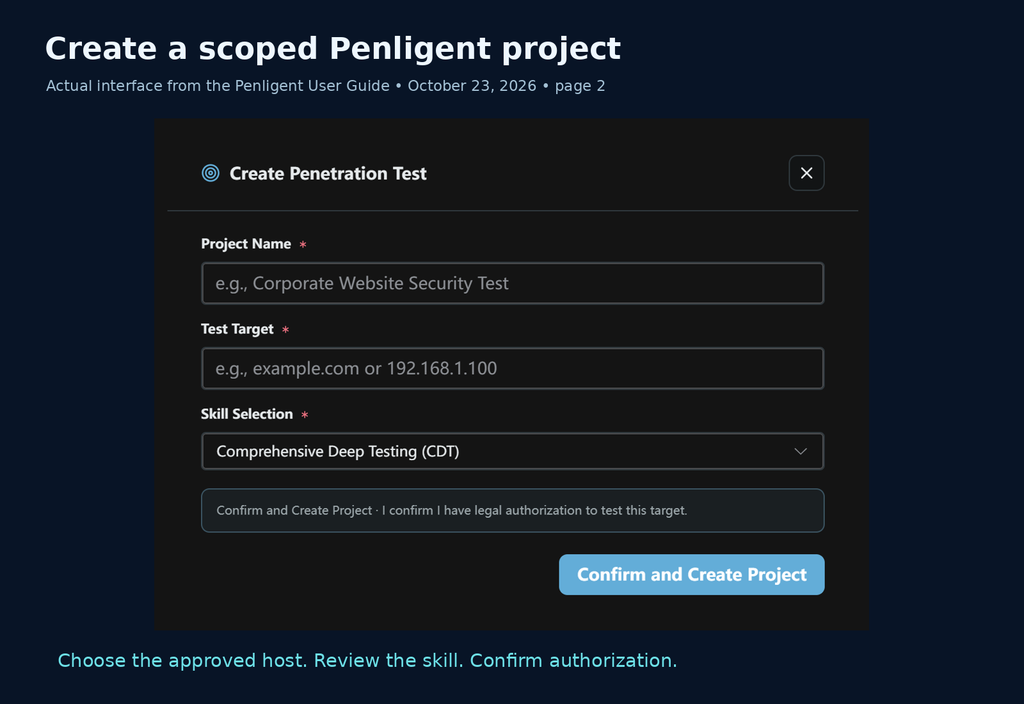
| フィールド | Practical example | Reason for the choice |
|---|---|---|
| Project Name — required | Staging invoice authorization review | Identifies the environment and the question being tested. |
| Test Target — required | staging.example.com | Names the approved host rather than broadening to example.com. |
| Skill Selection — required | A suitable option available in your installed dropdown | The guide screenshot defaults to Comprehensive Deep Testing (CDT); it does not enumerate every available skill. |
| Authorization confirmation | Written approval retained with the engagement | The button confirms your responsibility; it does not obtain permission from the owner. |
CDT is a visible default in the guide, not a guarantee that every test class runs or that the resulting coverage is complete. Review the selected skill and the tasks it produces against your objective. Follow the controls present in your installed build; this workflow uses the project and skill selection shown in the October 23 guide.
Open the project overview and establish the current state
Choose the project in the left-hand Projects list. Check the project name, test target and creation time in its summary before issuing a follow-up instruction. The project page provides views for the overview, agent work status, target information, attack paths, key findings and tool results, with Export Report available for the current project. See User Guide, pages 5–6.
| Project overview item | Documented content or action |
|---|---|
| Project summary | Project name, test target and creation time. |
| Agent executions | Agent execution information for this project. |
| Risks found | Discovered risks and their severity statistics. |
| Agents currently running | Recent running agents; use View all to open the corresponding list. |
| Recently discovered risks | Recent findings; use View all to open the corresponding list. |
| Attack Graph | A summary of discovered attack paths; View details opens the detailed view. An empty state is shown when no path is available. |
| Export Report | Opens the current project’s report-export workflow. |
Use this overview as the handoff point when returning to an engagement. If the target or creation time belongs to a different run, stop before sending instructions. If the project has risks but no attack path, inspect the risks individually; the absence of a path does not erase the underlying findings. Conversely, the appearance of a graph does not replace the path verification described later.
Give Agent Console context that changes the test
Agent Console accepts questions, application background and follow-up instructions for the current project. It also shows agent replies and task activity. Type @ to mention an Agent or a Keyfinding when you want the message to refer to a particular object. These controls are documented on pages 3–5. Enter @ to address the relevant Agent or Keyfinding.
- Read the conversation for the current task state, queued testing directions and the agent’s returned information.
- Enter the question, application background or additional requirement in the input box at the bottom, then send it.
- タイプ
@and select an Agent or Keyfinding when the message concerns that specific object. - Read the resulting reply and follow the related task or finding view when evidence is needed; a conversation summary is not the raw execution record.
Useful context explains a security expectation. “Test my app” gives little direction. “An ordinary user may read only invoices owned by their tenant” defines a boundary that can be checked. Include the environment, approved roles, synthetic data, sensitive operations and the evidence you expect. Keep passwords, bearer tokens, session cookies and customer records out of general explanatory messages; use an approved credential-handling method supported by your environment.
Example context for Agent Console — replace with your approved details:

This project is limited to staging.example.com.
The objective is invoice authorization, using two dedicated test accounts
in separate test tenants and synthetic invoices only.

An ordinary user may read their own tenant's invoices.
They must not read invoices belonging to the other test tenant.
Do not send real email, change billing, delete data or contact other hosts.
Follow the engagement's approved request budget and test window.

For each candidate issue, identify the account role, object ownership,
expected behavior, actual behavior and supporting tool result.
If access or evidence is insufficient, describe the limit instead of
calling the test passed. Ask before any state-changing validation.
Treat that message as a test brief. Confirm what the agent plans to do and watch the actual queue; the guide does not promise that a request to “ask first” creates an application-wide approval gate. If safe execution requires a step-by-step approval control that your installed workflow does not provide, keep that portion of the test in an independently controlled tool or stop before it begins.
Target pages, tool output and downloaded documents are also untrusted inputs. A page can contain text that tries to instruct an agent to ignore scope, expose a token or execute a command. Such text is evidence from the target, not authority to change the engagement. Review proposed commands and destinations when target content appears to influence the next action. This is an operating practice for the engagement, not a claim that the guide documents a particular prompt-injection defense.
Follow execution through the queue and raw tool results
Open the project overview to see the project name, target, creation time, agent executions, risks and recent activity. Agent Work Status is the more useful view when you need to understand progress: its queue shows Running, Interrupted, Completed, Ended and Total counts, with an agent name, status, task description and duration for each task. Expand a task to inspect associated Key Findings and its Action trail. Refresh the view when necessary. These views are described on pages 6–8.
To examine one task, click its queue entry rather than relying only on the summary counters. Its expanded area can contain more execution information than fits on screen, so scroll within the details region when necessary. Use the control beside an Action trail section heading to expand or collapse that section. The associated Key Findings count describes findings recorded for that task, not every finding in the project.
The guide provides a stop control for an individual task and Interrupt Task for the current task run. Use interruption when a task moves outside scope, causes unexpected load or attempts an unapproved state change. Then inspect the refreshed queue and related tool results to establish what actually ran. The guide does not state that an interrupt undoes a completed request or immediately terminates every descendant process; do not rely on it as rollback.
Tool Results is where you check the execution record. Expand an entry to examine Summary, Command, Purpose, start time and duration, then read Command Executed そして Output. The guide documents these fields on pages 13–14. An agent’s explanation is easier to assess when you can compare it with the command and returned output. A completed task whose tool failed to authenticate, reached the wrong host or returned no relevant data has not established coverage.
The results page also shows its total number of entries. At the top of each entry, review the tool name, execution status and summary, then expand it for the detailed record. 概要 describes the result, 目的 explains the intended task, and the command/output fields allow you to inspect what was actually attempted. The project-level Export Report control remains available from this page. The amount of detail depends on the tool that ran and the data it returned.
| What you see | What it establishes | What it does not establish |
|---|---|---|
| Completed task | The queue records that execution state. | That the intended security property was fully tested. |
| No key findings or 0 | No key finding is currently recorded for that task. | That the application has no vulnerabilities. |
| Command and returned output | An inspectable record of a tool invocation and response. | That the chosen method was sufficient or the conclusion is correct. |
| Interrupted or stopped task | A task was interrupted or stopped in the recorded workflow. | That prior target-side changes were reversed. |
| Empty Target Overview field | No value is currently shown for that field. | That the corresponding service or risk is absent. |
Use target information to decide what remains untested
Target Overview groups Target Info, Network Info and Web App Info. The guide lists host and network attributes, ports and services, DNS, reverse DNS, WAF/CDN observations, detected technologies and TLS certificate information. A dash or No data means that information is not currently available; it may appear after task execution. See User Guide, pages 8–9.
| Group | Fields documented in the guide | Useful follow-up |
|---|---|---|
| Target Info | Test target, target type, location, cloud provider, region, ASN, subnet, IP addresses and domains. | Check that the observed target identity still corresponds to the approved system. Treat a newly observed domain or address as a scope decision. |
| Network Info | Open ports and services, DNS records, reverse DNS and WAF/CDN detection results. | Relate a reachable service to the actual test objective; distinguish origin infrastructure from an intermediary. |
| Web App Info | Detected technology stack and TLS certificate subject, issuer, validity and fingerprint. | Use these as observations for further review, not standalone proof of a vulnerable component or certificate-policy failure. |
| – or No data | No information currently available for that field. | Review task execution and wait for relevant discovery results where appropriate; do not convert missing data into a negative test result. |
Use these observations to improve the test plan, not inflate it. A login surface may justify a separately authorized authenticated review. A product fingerprint may justify checking a vendor advisory and the deployed package inventory. Neither automatically authorizes credential guessing or exploit execution. A version banner alone is weak evidence of CVE exposure because patch backports, proxies and deployment differences can change the conclusion. Record the component, reliable version evidence, reachable preconditions and patch state before describing a CVE as confirmed.
For methodology coverage, use the OWASP ウェブ・セキュリティ・テスト・ガイド. Map the engagement objective to relevant test categories and record which were attempted, blocked or excluded. A dashboard measures what the workflow recorded; a coverage record explains what was actually examined.
Review Key Findings before accepting a vulnerability
で Key Findings, search by name, description or target and use the status/category and severity filters. The guide shows All Risks, Ignored Risks, Verifying and Credentials, together with Critical, High, Medium, Low and INFO severity filters. Inspect the affected target, description, severity and verification status on the card. Expand it for Risk Verification Process, 修復 そして Evidence/PoC, when those data exist. See User Guide, pages 10–12.
Filter numbers indicate how many items match the corresponding selection. Start with a target or issue name when you are checking one report, then narrow by status/category or severity. Open a matching card and verify its target before taking action. A Credentials category and a High severity selection answer different questions; keep the category, severity and verification state distinct in your notes.
Click ベリファイ to request risk verification; click Ignore to move the item to ignored risks. Ignoring an item is a triage decision, not a remediation action. Keep the reason in your engagement notes so that another reviewer can distinguish a false positive, an accepted risk, a duplicate and an untested candidate. The guide does not specify a fixed number of verification rounds, a zero-false-positive guarantee or automatic independent human review.
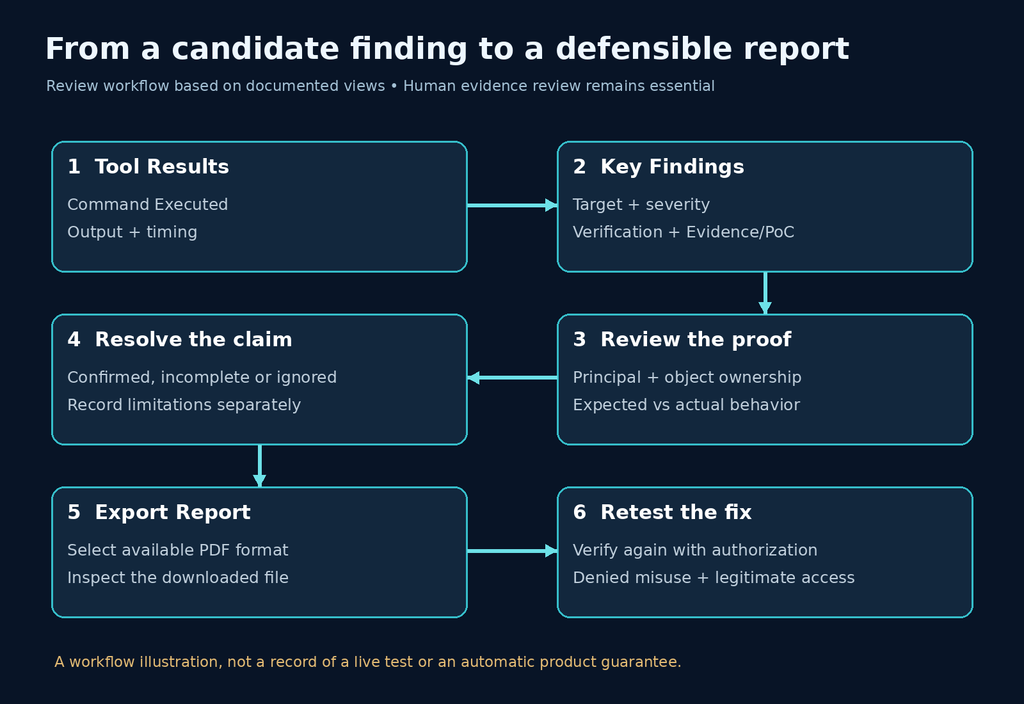
For an authorization finding, demand more than an HTTP status code. A 200 response may be a login page or a client-side application shell. Matching JSON keys may show only that two responses use the same schema. The meaningful question is whether the wrong test principal receives the other test tenant’s protected object. OWASP’s Broken Object Level Authorization guidance explains why authorization must be checked against the requested object.
| Evidence item | What a reviewer needs |
|---|---|
| Principal and object | The test account role, tenant and synthetic object owner. Never infer ownership from an ID alone. |
| Expected result | The business rule and the access decision it requires. |
| Actual result | Relevant status and a minimized response excerpt showing the protected object or denial. |
| Reproduction | The ordered requests or actions, prerequisites and relevant deployment context. |
| コントロール | A permitted request that succeeds, so a failed cross-tenant attempt is not simply a broken login or unavailable service. |
| 制限事項 | Untested roles, blocked paths, incomplete evidence or alternative explanations. |
| Remediation and retest | The server-side control to change and the same boundary to check after deployment. |
For a successful denial test, verify both the denial and the absence of protected data; a response that says “forbidden” but includes the object is still a problem. For a successful exploitability claim, verify that the test used the stated identity and that the object belongs to the other controlled tenant. Use the smallest synthetic record that proves the boundary failure. Stop if real customer data appears unexpectedly.
A small offline exercise for checking evidence logic
The following Python exercise illustrates the evidence standard without sending requests to a target. It uses synthetic accounts and invoices in memory, models an insecure and a corrected access decision, and checks that the corrected version still allows legitimate access. This is not Penligent output, a captured HTTP exchange or proof that a real application is vulnerable.
# Save as evidence_check.py; run: python evidence_check.py
accounts = {"alice": "tenant-a", "bob": "tenant-b"}
invoices = {
    "inv-a": {"tenant": "tenant-a", "marker": "SYNTHETIC-A"},
    "inv-b": {"tenant": "tenant-b", "marker": "SYNTHETIC-B"},
}

def read_invoice(user, invoice_id, enforce_owner):
    invoice = invoices[invoice_id]
    if enforce_owner and accounts[user] != invoice["tenant"]:
        return 403, {"error": "forbidden"}
    return 200, dict(invoice)

status, body = read_invoice("alice", "inv-b", False)
assert status == 200 and body["marker"] == "SYNTHETIC-B"
status, body = read_invoice("alice", "inv-b", True)
assert status == 403 and "marker" not in body
status, body = read_invoice("alice", "inv-a", True)
assert status == 200 and body["marker"] == "SYNTHETIC-A"
print("3 synthetic evidence checks passed")
This exact offline example was executed during preparation and printed 3 synthetic evidence checks passed. The three assertions answer different questions: can the insecure decision disclose another tenant’s object, does the corrected decision deny that disclosure, and does legitimate access still work? Keep that distinction when reviewing agent evidence. A report that includes only the second check may hide a system that denies everyone. A report that includes only the first may omit the ownership proof needed to establish a real boundary violation.
Treat an attack graph as a hypothesis until the path is checked
Attack Graph displays risk and credential nodes and their relationships. Select a node, choose a candidate in Path Selection, read the highlighted route and Path Information, and click ベリファイ when the proposed validation is authorized. The guide says the validation process and result appear in the path information area; Fit Graph adjusts the view. See User Guide, pages 9–10.
- Click a risk or credential node in the left-hand Attack Graph to inspect paths associated with that node.
- Select one candidate in the right-hand Path Selection list. The graph highlights the selected route and the right-hand area presents its nodes and path details.
- Read Path Information below the selection. If the path has not been verified or no result exists, retain that state rather than treating the route as confirmed.
- If the validation is within authorization, click Verify and read the verification process and result in the path information area.
- Use Fit Graph to fit the diagram within its display area. This changes the view, not the validation state.
A candidate path is not a demonstrated compromise. Read the preconditions at each step: which principal holds the credential, which host is reachable, which permission is required and what evidence links one step to the next. Two valid findings do not form an executable chain merely because they appear on the same diagram. If validation is absent, blocked or incomplete, retain that state in your notes and report rather than converting the graph into a narrative of successful exploitation.
Path verification can involve additional target interaction. Review its scope and potential side effects before launching it; a Verify label does not promise a passive check. If a proposed path needs a credential or system that is outside the engagement, stop at that boundary and describe the unverified dependency.
Export a useful report and inspect the downloaded file
For a single finding, open its export control to reach Export Risk, select an available Export Format and click Start Export. For the full project, click Export Report and use the corresponding dialog. The guide shows PDF for both flows and says the browser downloads the file when it is ready. Cancel dismisses the operation. See User Guide, pages 12–13 and 16–17.
- For one risk, expand its details and click that risk’s export control. Confirm the dialog is Export Risk.
- For the engagement as a whole, click Export Report on the project page and confirm the project context.
- In either dialog, choose an available option in Export Format. PDF (.pdf) is the format shown in the guide.
- Click Start Export and allow the browser to download the prepared file. Check the browser’s downloads if you do not see the saved file immediately.
- Use Cancel when you do not want to continue with that export. Open the completed download and review its content before sharing it.
Open the downloaded PDF. Check that it belongs to the correct project, contains the intended risks, renders its evidence and does not expose unnecessary secrets. The guide does not establish that an export automatically includes every field in the review table below. Add missing material to the delivery process rather than assuming that the presence of an Export button means the report is complete. Use the formats available in your installed Export Format dialog; PDF is the format shown in the October 23 guide.
| Delivery section | Review before sharing |
|---|---|
| Scope and context | Approved target, test dates and timezone, roles, exclusions and relevant environment. |
| Finding status | Confirmed, candidate, ignored or incomplete items remain distinguishable. |
| エビデンス | Reproduction steps connect to minimized raw proof and the account or role used. |
| インパクト | The demonstrated security consequence is separated from a possible wider consequence. |
| 修復 | A responsible team can identify the control or code path to change. |
| Retest | The same synthetic fixture and access boundary can be checked after the fix. |
| Sensitive material | Tokens, passwords, customer data and unrelated infrastructure details are removed or protected. |
Preserve relevant commands, tool versions, timestamps and raw output in an access-controlled evidence store. Redact delivery copies without destroying the original context needed for a permitted internal review. Avoid treating every request and response as suitable input for an external model; decide beforehand which data may leave the testing environment. The October 23 guide does not specify model-provider routing, retention or deployment isolation, so those require a separate review of the actual configuration and applicable terms.
Review the asset inventory and its linked tasks
Open Asset management to review collected target assets and their associated data. Search by a domain or IP address when you need to locate one asset. This view connects the target to verified-risk statistics, masked credential information and its related task. The field-level instructions below follow pages 14–15 of the User Guide.
| Asset field or control | Meaning and action |
|---|---|
| Search | Enter a domain or IP address to filter the asset list. |
| ターゲット | The asset’s target. Confirm it is the system you intend to review. |
| Asset description | An available description of that asset. A missing description is not an execution result. |
| Risk statistics (verified) | The severity and number of verified risks associated with the asset. |
| Credential information (masked) | Credential-related information displayed with sensitive values obscured. |
| View task | Opens the task associated with the asset. Use it to connect inventory data to execution context. |
| Verify again | Creates a review task based on that target. Confirm current authorization before starting it. |
| Refresh | Refreshes the asset list. |
A practical review starts with the asset rather than the risk count: confirm the hostname or IP, open View task, then inspect the evidence associated with the risks you are remediating. This prevents a finding for one deployment being closed because a similar host passed a different test. Refresh the list after relevant work, and preserve any remaining ambiguity in the handoff to the system owner.
Retest the fixed deployment, then decide what to schedule
Use the asset’s Verify again control when you need a review task for a remediated target. Confirm that authorization and the dedicated test credentials remain valid. Masking a credential in an inventory view does not remove the need to manage that credential’s permissions and lifetime.
For remediation, keep the original account roles and synthetic object ownership so the comparison remains meaningful. Confirm which deployment contains the fix; testing a different staging build does not close a production finding. Repeat the disallowed action, confirm the protected data is absent, then repeat the legitimate action. If the account no longer logs in or the endpoint has disappeared, record that result and investigate rather than marking the original issue fixed solely because the old request failed.
で Scheduled tasks, fill in Plan name, Test target and Skill, then select the task mode and execution schedule. The guide distinguishes New project, which starts without reusing prior task data, from Verify again, which uses credential information to run again. Execution offers Once または Weekly; the screenshot shows a Run at field for Once. Click Create plan to save the plan or Cancel to discard it. See User Guide, pages 15–16.
| Scheduled-task field | What to enter or select | Important distinction |
|---|---|---|
| Plan name | A descriptive name for the plan. | Use a name that identifies the target and purpose when you return to the schedule. |
| Test target | The authorized target for this plan. | Recheck this separately from the target of the currently open project. |
| Skill | A testing scheme from the dropdown. | The guide screenshot shows Comprehensive Deep Testing (CDT). |
| Task mode: New project | A fresh run without reusing data from prior tasks. | Use it when a clean starting context is the intended mode. |
| Task mode: Verify again | Run the test again using credential information. | Confirm that those credentials remain authorized and appropriate. |
| Execution: Once | A single execution, with the corresponding time setting. | The screenshot shows the Run at field for this mode. |
| Execution: Weekly | A weekly execution schedule. | Set the timing presented by the selected mode in the installed interface. |
| Create plan / Cancel | Create the configured plan or cancel it. | Review target, mode and time before clicking Create plan. |
Schedule only after the initial test is understood. Recheck credential validity, target ownership, the approved window and the environment before a repeated run. Confirm the scheduling timezone in the actual application; the guide does not define it. It also does not document notification guarantees or a global recurring-task pause policy. Confirm these operational details before relying on an unattended run.
Adjust Settings and identify the installed version
Open Settings from the sidebar to manage the application preferences shown on page 18 of the User Guide. The screenshot shows Current Version として 3.0.0. Check and record your own installed version when comparing interfaces or reporting an issue.
| Settings item | Documented behavior | When it is useful |
|---|---|---|
| User Login | Shows the current signed-in user; Logout signs that user out. | Confirm the account context before reviewing an engagement or handing over a workstation. |
| Font Size | A− decreases and A+ increases the interface font size; the middle value shows the current adjustment. | Make task output and evidence easier to read without altering the underlying result. |
| 言語 | Select the interface language from the dropdown. | Match the language you work in; this article retains the English labels shown in the guide. |
| Theme | Switch between Dark Mode and Light Mode. | Choose a readable interface for your working environment. |
| Current Version | Shows the installed version. | Record it when a control differs from the guide or when seeking support. |
| Check Update | Checks for an application update. | Check availability through the documented control rather than assuming an installer filename identifies the running build. |
Do not confuse Font Size, Language or Theme changes with changes to testing behavior. If you are troubleshooting a missing control, record the version and the exact view first. The Python interpreter belongs in Environment Settings; changing the general appearance settings will not repair a wrong executable path.
Work through one complete engagement before expanding scope
Consider an illustrative staging invoice review. This is an operating example, not a reported test of Penligent or a live application. The owner authorizes one staging hostname, two dedicated test tenants and synthetic invoices, with no real billing changes. The question is precise: can each user retrieve their own tenant’s invoice while being denied access to the other test tenant’s invoice?
Begin by installing the matching package, saving the Python executable path and creating a named project for the approved hostname. In Agent Console, provide the expected ownership rule and the excluded actions. Read the queued directions before letting the test continue. A direction that requires an unrelated host or a real financial transaction needs a scope decision before execution; the test objective does not authorize every possible path toward it.
While work runs, use Agent Work Status to connect each task to its Action trail and associated Key Findings. In Tool Results, inspect whether the commands reached the intended system and whether authentication actually succeeded. If a tool returns a login page for both accounts, you have an authentication or test-setup problem—not proof that tenant isolation is working. Resolve that prerequisite before interpreting the access result.
When a candidate finding appears, open its card, confirm the affected target and inspect Risk Verification Process and Evidence/PoC where present. Check object ownership, the principal used and the exact protected data returned or withheld. The offline code earlier illustrates the three separate checks: disclose under the deliberately insecure model, deny under the corrected model, and preserve legitimate access. In a real authorized engagement, retain the equivalent minimized evidence instead of using the toy’s output as a substitute.
Use Verify when additional risk verification is appropriate and approved. If an attack path is proposed, select that candidate and read Path Information rather than assuming the finding automatically proves the path. Export the individual risk when an engineer needs one issue; export the project report for the complete engagement. Open the downloaded PDF and verify the target, finding status, reproduction context and redactions.
After the owner deploys the fix, find the asset, confirm the intended deployment and create a Verify again task within the renewed authorization. Repeat the denied cross-tenant check and the permitted own-tenant control. If you later create a weekly plan, choose its target, skill and task mode deliberately rather than treating a scheduled run as an automatic continuation of the old approval. The final handoff should state the demonstrated result and any untested roles, paths or environments.
Find the official site and community
The guide’s quick links are the official Penligent website and its Discord community and contact channel. Use the official-site buttons in this article to reach the website. When asking for help, include the installed version, operating system and architecture, the affected view, and a redacted error or tool result. Keep credentials and customer information out of a public support conversation.
Troubleshoot the first run without overstating the result
| Symptom | Check first | What to avoid concluding |
|---|---|---|
| Tool execution fails | Python Executable Path, interpreter accessibility, the specific tool command and returned error. | That the target is secure because the tool produced no finding. |
| Queue appears idle or stale | Refresh Agent Work Status and expand the relevant task and Action trail. | That every queued direction executed. |
| Target Overview shows dashes | Whether discovery ran and whether Tool Results contain usable data. | That missing data proves no service exists. |
| No key findings | The completed methods, authentication success, access and coverage limits. | That zero findings is a security certification. |
| Risk lacks Evidence/PoC | Verification data, raw tool output and what remains unproven. | That a severity label establishes impact. |
| Attack path has no verification information | Selected candidate, prerequisites and authorization for additional checks. | That a graph edge proves lateral movement. |
| Retest cannot authenticate | Dedicated account status and approved credential provisioning. | That an expired session proves remediation. |
| Export seems incomplete | Open the downloaded file and compare it with the project and required delivery fields. | That every UI item was automatically exported. |
If you use a separate intercepting proxy, inspect the actual requests and responses rather than relying on a scanner summary. That is an optional method for a permitted web test, not a setup step shown in the supplied Penligent guide. PortSwigger’s browser certificate instructions explain the CA trust needed for Burp interception. Use an isolated test browser and avoid changing a daily-use browser’s trust configuration casually. Burp certificate trust is a separate tool configuration.
Watch the workflow, then follow the current guide
The existing demonstration below is titled “How to Use AI for Pentesting.” Treat it as supporting orientation; when interface labels differ, follow the documented controls and the installed application rather than assuming a video proves the current build has a specific feature.
Questions that matter before your first AI pentest
Can I use AI for pentesting without security experience?
- You can follow the setup and project workflow, but interpreting evidence and choosing safe tests still require judgment. Start with an owned staging system and a narrow objective; obtain experienced review before delegating sensitive production actions.
Does entering a domain authorize testing its subdomains?
- No. Authorization comes from the owner and the agreed scope. Treat discovered hosts and third-party systems as outside scope until explicitly approved.
Does Penligent require Kali Linux?
- The October 23 guide recommends Kali and also lists Windows x64, macOS ARM and Linux AMD64/ARM64 installation options. Verify the package and prerequisites for your actual machine.
Does the Python setting install every pentesting tool?
- The guide describes selecting and saving a Python executable path. It does not state that this installs all external tools or makes arbitrary scripts safe to run.
Does Verify mean a finding is certainly real?
- It starts a verification workflow. Inspect its process, evidence, prerequisites and actual result. A button click, severity badge or completed task alone does not establish the claimed impact.
Can I export Markdown from this workflow?
- The October 23 guide shows PDF export for individual risks and projects. Use the formats available in your installed dialog; do not assume another format from this walkthrough.
Can I schedule a retest?
- The guide documents Once and Weekly schedules and distinguishes New project from Verify again. Confirm authorization, credentials, target and timezone before creating the plan.
Will an AI pentest prove my application is secure?
- No finite test establishes that. A useful result records what was tested, what was verified, what was blocked or excluded, and how confirmed issues will be fixed and checked again.
Finish the first engagement when you can trace each reported issue back to its target, task, command, evidence and security expectation—and explain the gaps with equal precision. That is the point at which AI assistance becomes useful security work rather than a convincing summary of activity.
Product walkthrough source: Penligent User Guide, October 23, 2026, pages 1–18. The project-creation screenshot is reproduced from that guide. The evidence-review diagram is an editorial workflow illustration; instructional examples use synthetic data. External methodology references are linked beside the relevant discussion.
 Japanese
  English
  German
  French
  Spanish
  Portuguese
  Korean
  Hindi
Hindi  Arabic
  Turkish
  Hebrew