
You reset your Mac password, sign back in, and the machine looks normal for about thirty seconds. Then Safari stops filling passwords. An app asks for a keychain password you do not remember. Certificates are missing. Wi-Fi prompts appear again. SSH keys or stored tokens seem gone. It feels like Apple Keychain vanished.
That is usually not what happened.
What typically happened is simpler and more frustrating: the password you now use to sign in no longer matches the password that protects your old login keychain. Apple’s own documentation says the login keychain password is normally the same as your user password, but if those two drift apart, the keychain does not automatically unlock. Apple also states that if your user password was reset because you forgot it and you cannot provide the old keychain password, you will not be able to access the information in the old keychain, and a new blank keychain is created. (Apple Destek)
That distinction matters because “cannot access the old keychain” is not the same thing as “the old secrets were erased forever.” Apple documents supported ways to add an old keychain file back into Keychain Access, and it explicitly notes that deleted or older keychain files can be reopened from Finder or restored with Time Machine. Apple also documents that keychains usually live in the Keychains folder inside your home Library, and that keychain files typically end in .keychain-db. (Apple Destek)
The result is a recovery problem with a very specific shape. If you still know the old keychain password, your best move is usually to preserve the existing files, load the old keychain cautiously, and verify what is still there before you reset anything. If you do not know the old password, the answer shifts away from the local login keychain and toward backups, iCloud Keychain recovery, or manual rebuilding of credentials. Apple’s platform security model is the reason this is painful, and recent Apple security advisories make clear that keychain data is important enough to remain a live target for real vulnerabilities. (Apple Destek)
What Apple Keychain is on modern macOS
Apple Keychain is not just “where Safari stores passwords.” It is the broader secure storage system Apple uses for passwords, login tokens, cryptographic keys, certificates, and other small but high-value secrets. Apple’s platform security documentation describes keychain data as the place where apps store passwords, keys, and login tokens, and explains that macOS keychain items are encrypted with separate keys for metadata and secret values. Apple also notes that the keychain is implemented as a SQLite database and that the securityd daemon decides which items a process can access. (Apple Destek)
On current Macs, the user-facing experience is split between two interfaces. Apple’s Keychain Access guide says you can still use Keychain Access to manage keychains and certificates, but it also notes that passwords, passkeys, and verification codes are visible in the Passwords app on modern macOS. That is important because many people think Apple “replaced keychain with Passwords.” It did not. The UI changed. The underlying security model did not disappear. (Apple Destek)
There is also more than one storage context involved. Apple distinguishes between the ordinary keychains that live in your user Library, Local Items, and iCloud Keychain. Apple’s support documentation on copying keychains is especially useful here because it explicitly says you cannot manually copy passwords stored in Local Items or iCloud Keychain the same way you can copy other keychain files. Apple tells users to set up iCloud Keychain on the destination machine instead of trying to manually transplant those stores. That one line explains a lot of failed recovery attempts. People see files in ~/Library/Keychains, copy everything blindly, and assume every secure store in that directory behaves like login.keychain-db. It does not. (Apple Destek)
That is why a good recovery process starts by separating three different questions. First, are you trying to recover the old local login keychain that was protected by the old user password. Second, are you trying to get back secrets that were already syncing through iCloud Keychain. Third, are you dealing with additional system-managed stores, including Local Items, that Apple does not want you to migrate by hand. If you mix those together, you end up either wiping data that was still recoverable or chasing the wrong recovery path entirely. (Apple Destek)
Why a Mac password reset breaks the old login keychain
The core failure mode is not mysterious once you separate account login from keychain encryption.
Apple’s official instructions for forgotten Mac login passwords explain how to use recovery options, including the resetpassword flow in macOS Recovery, to create a new account password. That process gets you back into the Mac. It does not promise to transparently rewrap your old login keychain with the new password. Apple’s separate Keychain Access documentation fills in the missing piece: the login keychain password is normally the same as the user password, but if the keychain password differs, the keychain will not unlock automatically. And if your user password was reset because you forgot it and you cannot provide the old keychain password, Apple says you will not be able to access the information in the old keychain and a new blank keychain will be created. (Apple Destek)
That one Apple sentence explains most “my passwords disappeared after I reset my Mac password” incidents better than a dozen generic troubleshooting pages. The local account password and the old login keychain had been aligned. Recovery changed the account password. The old keychain still expects the old keychain password. When that cannot be provided, macOS has to choose between preserving the security boundary and silently weakening it. Apple chose the security boundary. The system favors a new empty login keychain rather than an automatic migration path that would undermine the protection of previously stored secrets. (Apple Destek)
This is also why so many shallow guides are unsatisfying. They jump straight to “reset your default keychain” because that stops the prompts and restores a clean user experience. Apple does document that reset path. It also explicitly warns that resetting the default keychain deletes the passwords saved in that keychain. If your goal is a clean system, that may be fine. If your goal is to recover the old stored credentials, it is the wrong first move. (Apple Destek)
The one distinction most recovery articles miss
Apple’s documentation is correct when it says that without the old keychain password you cannot access the information in the old keychain. But that official wording often gets interpreted as “the old data is gone.” Those are not the same claim.
Apple’s own Keychain Access documentation says that if you deleted a keychain because you forgot the password and later remember it, you can recover items stored in that deleted keychain by choosing File > Add Keychain and selecting the old file. Apple also says the file can be reopened directly in Finder or restored with Time Machine, and that keychains are usually located in the Keychains folder inside your home Library. Apple separately says that to access the items in a copied keychain on another Mac, you must use the same password used for that keychain on the previous machine. (Apple Destek)
That means there are really two questions after a password reset. The first is whether the old keychain still exists as a file or in backup. The second is whether you still know the old password needed to unlock it. If the answer to both is yes, recovery is often practical. If the old file exists but the old password is truly gone, the local recovery story gets much worse, and you should stop hoping for a shortcut. (Apple Destek)
A recent field report published in March 2026 shows this distinction clearly. In that case, after a Recovery-based password reset, the original keychain was not destroyed. The user found the old file in ~/Library/Keychains under the name login_renamed_1.keychain-db, alongside a newly created login.keychain-db. After restoring the old file to the default name and unlocking it with the old password, the user reported that the stored data became available again. This is not Apple’s primary documented workflow, but it is a useful real-world example of why you should inspect and preserve the directory before you start deleting things. (Arkoinad)
What files you may actually see in ~/Library/Keychains
The directory matters, but you should not treat every item in it the same way.
Apple documents that keychains are usually located in the Keychains folder in the Library folder in your home directory, and that keychain files typically end with .keychain-db. Apple also warns users not to select and copy encrypted folders with names that appear as a series of numbers when manually moving keychains. That warning is easy to miss, but it is one of the most useful lines in Apple’s documentation for this whole recovery problem. (Apple Destek)
In practice, a user investigating recovery may see a mix of old and new files, plus system-managed directories. The meanings are not always identical.
| File or folder | What it usually represents | Can you handle it manually | Old password needed | Notlar |
|---|---|---|---|---|
login.keychain-db | The current default login keychain file | Yes, cautiously | Usually yes for older data | Apple documents this filename and location in support materials. (Apple Destek) |
login_renamed_1.keychain-db or similar | A commonly reported renamed copy of a previous login keychain in some reset or migration cases | Sometimes, after backup | Evet | This filename is widely reported in field cases, but Apple does not document it as a guaranteed behavior. (Arkoinad) |
Other .keychain-db dosyalar | Custom or imported keychains | Often yes | Depends on the store | Apple supports adding old keychain files via Keychain Access. (Apple Destek) |
| UUID-named encrypted folders | System-managed secure stores such as Local Items related data | Not as a first recovery step | Not the right framing | Apple explicitly says not to copy the encrypted folders with numeric-looking names. (Apple Destek) |
The safest mindset is to treat ~/Library/Keychains like evidence in a live incident, not like a junk drawer. Preserve first. Inspect second. Change defaults last.
First, stop making the problem worse
A lot of recoverable keychain incidents become unrecoverable because the user keeps clicking until the warnings stop.
Do not start by resetting the default keychains unless you have already accepted that the old locally stored passwords are expendable. Apple documents that resetting the default keychain deletes the passwords saved in that keychain. That reset has a legitimate use case, but it is a cleanup path, not a recovery-first path. (Apple Destek)
Do not manually delete files in ~/Library/Keychains before taking a full copy of the directory. Apple’s documentation is explicit that keychain files can be reopened later and that Time Machine can restore them. That means the files themselves are valuable recovery material. Once you delete them carelessly, you are throwing away one of the few remaining ways back. (Apple Destek)
Do not assume that every newly visible or unfamiliar item in the Keychains directory is disposable. Apple tells users not to copy the encrypted UUID-style folders. That is a strong hint that those stores are system-managed and not the right place to improvise. You do not need to understand every file to avoid damaging the ones you may still need. (Apple Destek)
Do not mistake a prompt storm for proof that the old data is corrupted. Apple notes that repeated keychain prompts can happen when the keychain password and the user password are out of sync. In other words, the prompts are often a symptom of a mismatch, not proof that the underlying data store is empty or broken beyond recovery. (Apple Destek)
The real recovery decision tree
Before touching anything, classify your situation honestly.
| Durum | Do you know the old password | iCloud Keychain enabled | Backup available | Best first move |
|---|---|---|---|---|
| You changed the password while logged in and still know the old one | Evet | Maybe | Not required | Try to bring the old login keychain back into sync before resetting anything. Apple says entering the previous password is recommended when the keychain password differs. (Apple Destek) |
| You reset the password in Recovery but still know the old one | Evet | Maybe | Helpful | Preserve ~/Library/Keychains, look for the old keychain file, and use Add Keychain before considering a file swap. (Apple Destek) |
| You reset the password and do not know the old one, but iCloud Keychain was enabled | Hayır | Evet | Helpful | Treat local login keychain recovery as unlikely; focus on Apple-approved iCloud Keychain reapproval and syncing paths. (Apple Destek) |
| You reset the password, do not know the old one, and have no sync or backup | Hayır | Hayır | Hayır | The local old login keychain is generally not recoverable through a supported method. Rebuild credentials manually. (Apple Destek) |
| You have a Time Machine or file backup from before the reset | Maybe | Maybe | Evet | Restore the old keychain file to a safe location and add it back in Keychain Access for testing. (Apple Destek) |
The reason to be strict about this tree is simple. The wrong branch wastes hours. The worst branch deletes evidence.
Path one, recover the old keychain when you still know the old password
If you still know the old password, this is the branch worth patience.
Apple’s own guidance on deleted or old keychains points toward a safer recovery workflow than the internet’s usual “just rename the file and replace the new one” advice. Apple tells you to use Keychain Access, choose File > Add Keychain, and select the old file. Apple also says you can reopen the keychain file directly in Finder and that keychains are usually in your home Library’s Keychains folder. That official path is valuable because it lets you inspect and unlock the old store without immediately overwriting whatever the current system is doing with the new blank keychain. (Apple Destek)
Start by making a full backup of the current Keychains directory.
stamp="$(date +%Y%m%d-%H%M%S)"
mkdir -p "$HOME/Desktop/keychain-backup-$stamp"
cp -a "$HOME/Library/Keychains" "$HOME/Desktop/keychain-backup-$stamp/"
ls -lah "$HOME/Library/Keychains"
Those commands do not recover anything. They preserve state. That is the point. If you later decide to test a more aggressive step, you want a reversible baseline.
Next, open the directory and inspect it without changing names yet.
open "$HOME/Library/Keychains"
Look for the current login.keychain-db, any recently modified .keychain-db files, and any renamed candidates such as login_renamed_1.keychain-db. Apple documents the normal directory and file extension. A recent field report shows the specific login_renamed_1.keychain-db pattern after a password-reset event. Older community reports show the same naming pattern in some update and reset scenarios. That does not make the name universal, but it is common enough to check. (Apple Destek)
Now use Keychain Access and choose File > Add Keychain. Select the old candidate file rather than replacing the current default immediately. Apple officially supports this exact action for recovering items from an older or deleted keychain file. When prompted, enter the old password for that keychain. Apple’s copy-keychain documentation is explicit that access to items in the transferred keychain requires the same password used on the previous system. (Apple Destek)
Once the old keychain opens, do not rush. Search for the items you actually care about. Check a few saved website logins. Check whether application passwords appear under Passwords. Check whether certificates or identities you expect are visible. If the old keychain opens and the important items are present, you have proven the most important thing: the data is not gone, and the old password still works. That is the checkpoint that matters.
At this point, many recoveries can stop being dramatic. You may be able to use the old keychain as an added keychain, retrieve the secrets you need, and then decide whether you want to migrate selectively or make the old store functionally central again. What you should not do is assume that because the old keychain unlocked once, the system has fully resynchronized every edge case automatically. Validate first.
A cautious workflow for using the old keychain without overwriting the new one
The least risky approach is to keep the new blank default keychain in place while you confirm the old one contains the data you expect.
Apple’s support materials give you enough to make that workflow defensible. Apple says you can add an old keychain file through Keychain Access. Apple says the keychain file can also be opened from Finder. Apple says Time Machine can restore old keychain files. None of those steps require you to immediately replace the current login.keychain-db. (Apple Destek)
That matters because the new blank login keychain is not always completely valueless. In some environments, the user may already have authenticated to a few services after the reset. Some app permissions may have been recreated. Some current session state may now refer to the new keychain. A blind overwrite can turn a partial recovery problem into a mixed-state problem that is harder to reason about.
A cautious operator therefore works in this order. Preserve the directory. Add the old keychain file. Unlock it with the old password. Confirm its contents. Only then decide whether the correct long-term answer is selective migration, backup restoration, or making the old keychain the default again. Apple’s documentation supports the early phases of that sequence directly. The field reports support the later, more aggressive file-swap phase only as a practical technique, not as the primary vendor-documented workflow. (Apple Destek)
If you are supporting another person rather than your own machine, this is even more important. The fastest path is not always the safest path. When the secrets involved include passwords, passkeys, certificates, or SSH-related material, preserving reversibility matters more than shaving three minutes off the process.
When a full file swap can work, and why it is the higher-risk move
There are cases where restoring the old keychain by making it the current login.keychain-db works cleanly. A recent 2026 field report describes exactly that: the user found the original keychain stored as login_renamed_1.keychain-db, removed the new login.keychain-db, renamed the old file back to login.keychain-db, and then unlocked it with the old password. The result, in that report, was a successful restoration of the expected data. Older public reports from Apple community discussions describe similar recovery outcomes after renaming the old archived login keychain back into place. (Arkoinad)
The reason that can work is straightforward. macOS is once again being shown a login keychain under the name it expects for the user’s default login store. If the file is intact and the old password still unlocks it, the system can resume using that data rather than the new blank container.
The reason it is higher risk is equally straightforward. Apple’s official documentation does not present “delete the new login keychain and rename the old archived one into place” as its standard recovery path. Apple documents Add Keychain, restoring old files, and reopening deleted keychains. That difference matters because vendor-supported and field-discovered workflows have different stability guarantees. (Apple Destek)
If you decide to test a full swap, do it only after you have already backed up the entire Keychains directory and confirmed that the old file actually unlocks and contains the expected items. Even then, take a backup of both files before renaming anything.
stamp="$(date +%Y%m%d-%H%M%S)"
cd "$HOME/Library/Keychains"

cp -a "login.keychain-db" "login.keychain-db.before-restore-$stamp"
cp -a "login_renamed_1.keychain-db" "login_renamed_1.keychain-db.backup-$stamp"

# Advanced step only after verification
mv "login.keychain-db" "login.keychain-db.new-$stamp"
cp -a "login_renamed_1.keychain-db" "login.keychain-db"
That example is intentionally conservative. It copies the old file into place rather than moving your only copy. It also preserves the new file in case you need to roll back. The right mindset here is not confidence. It is reversibility.
Path two, recover from Time Machine or a file backup
Backups are the cleanest answer when the live directory is unclear or the current state has already been disturbed.
Apple explicitly documents that if you use Time Machine to back up your files, you can restore the keychain file with Time Machine. Apple also says you can reopen a keychain file directly in Finder or add it back through Keychain Access. These are strong vendor-supported recovery paths, and they are often better than improvising on the live directory after multiple resets and prompts. (Apple Destek)
The smart way to use a backup is not to overwrite your live Keychains directory immediately. Restore the relevant file or directory copy to a neutral location first, such as the Desktop or another working folder. Then add the backed-up keychain file in Keychain Access and test it with the old password. This matches Apple’s documented “Add Keychain” path and gives you the same low-risk inspection advantage as the live-file approach.
If the backup version opens and contains the missing secrets, you can decide what kind of restoration you actually need. In many cases, the practical answer is not a full directory rollback. It is selective recovery of the login keychain data you care about, followed by letting the current system state continue for everything else. This is especially important on modern Macs where the directory can also include system-managed stores Apple does not want you to manipulate manually. (Apple Destek)
If you are restoring from an older Mac to a new Mac, Apple’s own copy-keychains guidance is also useful. Apple says that if you did not use Setup Assistant, keychains can be copied or imported, but Local Items and iCloud Keychain passwords are not meant to be transferred that way. Apple also says you must use the same password that protected the original keychain. That matters because people often misread backup success as password bypass. It is not. The backup gets you the file. The old password still gates access. (Apple Destek)
Path three, recover what iCloud Keychain can still restore
If you do not know the old local keychain password, your attention should shift to iCloud Keychain, but only after you understand what problem it actually solves.
Apple describes iCloud Keychain as a system that securely syncs passwords and passkeys between approved devices without exposing them to Apple. Apple also says iCloud Keychain includes both syncing and recovery. In Apple’s platform security documentation, keychain recovery exists specifically so users do not lose all record of generated strong passwords or passkeys when devices are lost or unavailable. Apple further describes the recovery model as relying on secondary authentication and a secure escrow service, with end-to-end encrypted copies of keychain contents protected so Apple itself cannot read the underlying secrets. (Apple Destek)
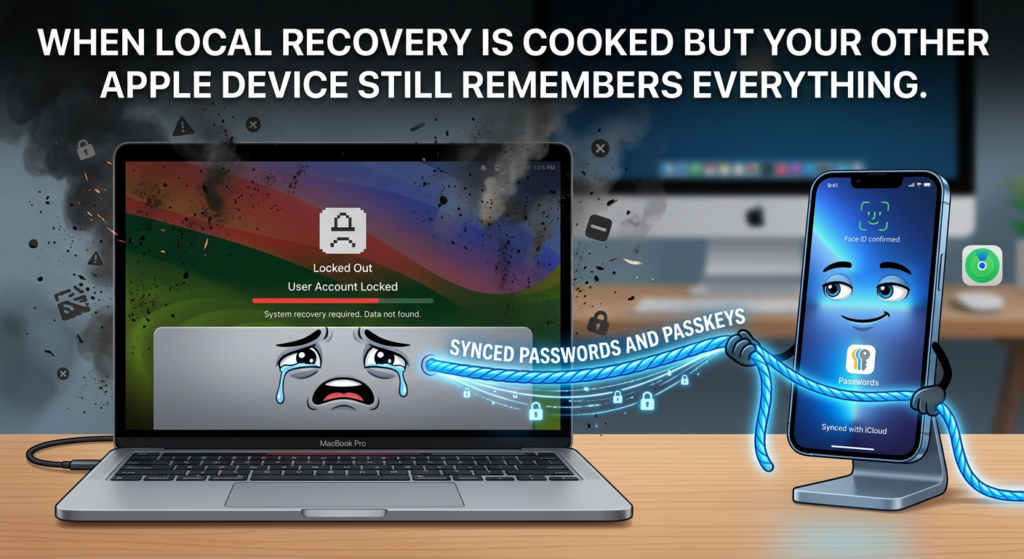
That means iCloud Keychain is not the same thing as your local login keychain file, but it can be the reason some passwords are recoverable even when the old local login keychain is not. Apple’s support article on setting up iCloud Keychain says that when enabled, passwords, passkeys, credit card information, and Wi-Fi passwords can be kept updated across approved devices. Apple also says that when iCloud Keychain is turned off, those items can remain stored locally on the device, and when it is turned back on, an encrypted copy stored on iCloud servers can sync back down again. (Apple Destek)
The operational consequence is simple. If the login keychain on this Mac is no longer accessible but you previously had iCloud Keychain enabled and you still control other trusted Apple devices, many of your synced passwords and passkeys may be recoverable through Apple’s approved reauthentication and syncing path. What iCloud Keychain will not do is magically decrypt a local-only login keychain item that never synced and was protected by an old password you no longer know.
This is where many users lose time. They keep staring at login.keychain-db when the real path back is on a different device signed into the same Apple Account. Apple’s support article even notes that on recent systems, certain recovery-related data such as a Mac’s FileVault recovery key may be visible in the Passwords app on another device signed into the same Apple Account. Apple also explicitly warns that a FileVault recovery key is not the same as an Apple Account recovery key. Those distinctions are easy to miss under stress. (Apple Destek)
If iCloud Keychain was part of your normal workflow, validate that first. Check a trusted iPhone, iPad, or another Mac. See whether the passwords and passkeys you need are visible there. Confirm that the affected Mac is still eligible to sync. Confirm whether Apple is prompting for approval from an old passcode or another device. Those are standard Apple recovery and reapproval behaviors, not hacks. (Apple Destek)
What you cannot recover without the old password
This is the part many people want softened. It should not be softened.
Apple’s documentation is clear: if your user password was reset because you forgot it and you cannot provide the old keychain password, you will not be able to access the information in the old keychain, and a new blank keychain is created. Apple’s support guidance on copying and reopening old keychains is equally clear that access to those items still requires the old password for that keychain. (Apple Destek)
That means there is no supported shortcut where possession of the file alone gives you the secrets inside. Apple’s platform security design helps explain why. Apple states that keychain metadata and secret values are encrypted separately, with secret values protected by a different key path that requires Secure Enclave involvement. The existence of a file on disk is therefore not the same thing as possession of readable password material. (Apple Destek)
If someone tells you there is a normal “Apple Keychain recovery tool” that can extract everything from an old login keychain file without the old password, treat that claim with skepticism. You may still recover synced iCloud data, you may still recover backed-up keychain files that you can unlock, and you may still rebuild credentials by resetting account passwords with service providers. But none of that is the same as legally and cleanly decrypting a local login keychain whose password you no longer know. Apple’s design is intentionally hostile to that outcome. (Apple Destek)
That can feel cruel when you are locked out of your own machine. It is still better than the alternative security model.
Why Apple made this painful on purpose
The easiest way to understand Apple’s design choice is to imagine the opposite design.
Suppose macOS Recovery let anyone who could reset a local account password automatically unwrap the user’s old login keychain and transparently rebind it to the new password. In usability terms, that would feel wonderful. In security terms, it would collapse an important boundary around stored secrets.
Apple’s platform security documentation repeatedly treats passwords, passkeys, keys, login tokens, and other short secrets as high-value data deserving dedicated protection. Apple also documents a history of hardening around keychain access and password prompts. When you read those materials together, the recovery pain stops looking accidental. It starts looking like the user-visible edge of a deliberate security posture. (Apple Destek)
Apple’s general password-security guidance reinforces the same idea at the device level. Apple states that Macs impose a limited number of password attempts and escalating time delays to discourage brute-force attacks. Apple also explains that these protections extend through startup, FileVault login, and recovery-related flows. That broader anti-brute-force model lines up with the keychain model: knowledge of the correct secret matters, and the platform resists giving you a side door around it. (Apple Destek)
This also explains a common emotional mismatch in recovery incidents. Users think, “But it’s still my Mac.” The platform thinks, “A stored secret should not become easy to unwrap just because the account password changed through a fallback path.” Apple optimized for the second sentence, not the first.
Recent CVEs that show why keychain protections matter
A recovery article without this section would miss the real security context. Apple Keychain is not just a convenience feature. It is a concentration point for secrets that attackers want badly enough to keep finding paths toward it.
One of the clearest historical examples is CVE-2017-7150. Apple’s security content for the macOS High Sierra supplemental update says a malicious application could extract keychain passwords because applications were able to bypass the keychain access prompt with a synthetic click. Apple’s fix was to require the user password when prompting for keychain access. That is directly relevant to recovery. When Apple insists that access to the keychain should hinge on real knowledge of the password rather than on a UI prompt that can be faked, it is responding to an actual class of abuse, not inventing inconvenience for its own sake. (Apple Destek)
A more recent example is CVE-2024-54490. In Apple’s macOS Sequoia 15.2 security content, Apple says a local attacker may gain access to a user’s keychain items, and that the issue was addressed by enabling hardened runtime. The public advisory is terse, but the meaning is clear enough: local security boundary failures can put keychain material at risk. The point is not the exploit details. The point is that keychain access remains strategically valuable to attackers. (Apple Destek)
Another useful case is CVE-2025-31213. Apple’s security content says an app may be able to access associated usernames and websites in a user’s iCloud Keychain because of a logging issue that required improved data redaction. That is not “full password theft,” but it still matters. Metadata around which sites and accounts a user stores in keychain can itself be privacy-sensitive and operationally valuable to attackers. Recovery articles that treat keychain as just a bag of passwords miss the broader exposure surface. (Apple Destek)
Apple’s more recent CVE-2026-28864 advisory states that a local attacker may gain access to a user’s keychain items and that Apple addressed the issue with improved permissions checking. Again, the public text is sparse, but the pattern is consistent. Keychain access control mistakes remain serious enough to deserve named CVEs and platform patches. That is the best answer to the frustrated question, “Why can’t Apple just make recovery easier?” Because easier recovery, if designed badly, becomes easier theft. (Apple Destek)
These cases are worth summarizing side by side.
| CVE | Apple’s public impact statement | Why it matters here | Practical lesson |
|---|---|---|---|
| CVE-2017-7150 | A malicious application can extract keychain passwords by bypassing the access prompt with a synthetic click | Shows why Apple hardened keychain prompts to require stronger user validation | Prompt-based access is a real security boundary, not cosmetic UI. (Apple Destek) |
| CVE-2024-54490 | A local attacker may gain access to a user’s keychain items | Shows that local privilege and runtime boundaries still matter for keychain security | Treat local compromise as highly relevant to stored credentials. (Apple Destek) |
| CVE-2025-31213 | An app may access associated usernames and websites in iCloud Keychain | Shows that even metadata leakage around keychain contents is sensitive | Recovery and storage decisions should account for privacy, not only password secrecy. (Apple Destek) |
| CVE-2026-28864 | A local attacker may gain access to user’s keychain items | Reinforces that permissions checking failures can expose high-value secrets | The platform’s insistence on strong keychain boundaries is justified. (Apple Destek) |
The point of these CVEs is not to turn a recovery article into vulnerability trivia. The point is to ground the recovery friction in reality. Apple Keychain is a high-value target because it centralizes secrets. The recovery path is hard because a weak recovery path would be an attack path.
Safe command-line checks that are actually useful
A lot of technical articles pad themselves with commands that do nothing helpful. The only command-line snippets worth keeping here are the ones that protect state, reveal structure, or help you move toward a vendor-supported workflow.
The first useful operation is a full backup of the Keychains directory, shown earlier. That gives you a rollback point. The second useful operation is a careful listing of files with timestamps so you can see what changed around the time of the password reset.
ls -lah "$HOME/Library/Keychains"
This is not glamorous, but it is often enough to reveal whether you have a freshly created login.keychain-db and an older renamed file nearby.
A third useful operation is simply opening the directory in Finder from the shell so you can use Apple’s documented GUI workflow from the right location.
open "$HOME/Library/Keychains"
That moves you toward File > Add Keychain, which Apple does support, instead of toward blind file surgery, which Apple does not document as the normal answer. (Apple Destek)
What is not useful for most users is trying to inspect the internals of the keychain database directly, trying to copy UUID-named encrypted folders, or trying to brute-force a local keychain because you vaguely remember part of the old password. Apple’s support and platform security materials point in the opposite direction. Preserve the files, use the supported UI path for adding an old keychain, and rely on the actual old password or on iCloud/backup recovery when appropriate. (Apple Destek)

How to verify that recovery actually worked
Recovery is not complete when the file looks right. Recovery is complete when the secrets you need are usable again.
Start with the obvious high-value targets. Check the Passwords app for a few known website or app entries. Apple’s Keychain Access guide points users to the Passwords app for passwords, passkeys, and verification codes on modern macOS, so this is where many of your practical confirmations now live. (Apple Destek)
Next, check browser autofill and app authentication prompts. If Safari or another app stops asking for the old keychain and begins resolving stored credentials normally, that is a good sign. If the system keeps asking for a keychain password repeatedly, Apple’s support page says that is often because the keychain is still locking automatically or the user password and keychain password are still out of sync. That means “the file is present” and “the state is healthy” are still not the same condition. (Apple Destek)
Then check less obvious but often more critical items: certificates, identities, Wi-Fi passwords, SSH-related credentials, enterprise application tokens, and anything your daily work actually depends on. Keychain recovery is not successful just because one saved website login came back.
Finally, if iCloud Keychain was part of the original picture, confirm that syncing is normal again. Apple’s setup documentation explains how the Mac should be configured to sync Passwords & Keychain through iCloud. If the Mac is still waiting for approval or shows drift relative to other trusted devices, that is not a minor detail. It changes what has actually been restored and what is still missing. (Apple Destek)
The most common mistakes people make
The first mistake is confusing the local login keychain with iCloud Keychain. They overlap in user experience and diverge sharply in recovery method. Apple documents them separately for a reason. The local login keychain may still exist on disk and require the old password. iCloud Keychain recovery depends on approved-device and escrow-based flows. (Apple Destek)
The second mistake is treating “Reset Default Keychains” as a recovery step. Apple documents it as a reset path and explicitly says it deletes saved passwords in that keychain. Use it when you have decided to abandon the old local store, not while you are still trying to recover it. (Apple Destek)
The third mistake is deleting login_renamed_1.keychain-db or a similar archived file because it looks redundant. Recent and older field reports show that renamed file may be the old keychain you actually want. Even when Apple does not document that filename as a guaranteed behavior, the practical lesson is clear: suspiciously renamed keychain files deserve inspection, not panic deletion. (Arkoinad)
The fourth mistake is treating the entire ~/Library/Keychains directory as a set of ordinary user files. Apple explicitly warns not to copy encrypted folders with numeric-looking names, and explicitly says Local Items and iCloud Keychain passwords are not meant to be transferred through manual copying. That warning exists because not everything there is your traditional login keychain. (Apple Destek)
The fifth mistake is chasing “recovery tools” that imply they can bypass the old keychain password cleanly. Apple’s documentation and platform security design point the other way. File possession is not authorization.
The sixth mistake is failing to validate the recovery after the first success signal. A user sees one password appear, assumes the job is done, and only later learns that certificates, Wi-Fi, or app-specific secrets never came back. Recovery needs verification, not hope.
How to reduce the odds of this happening again
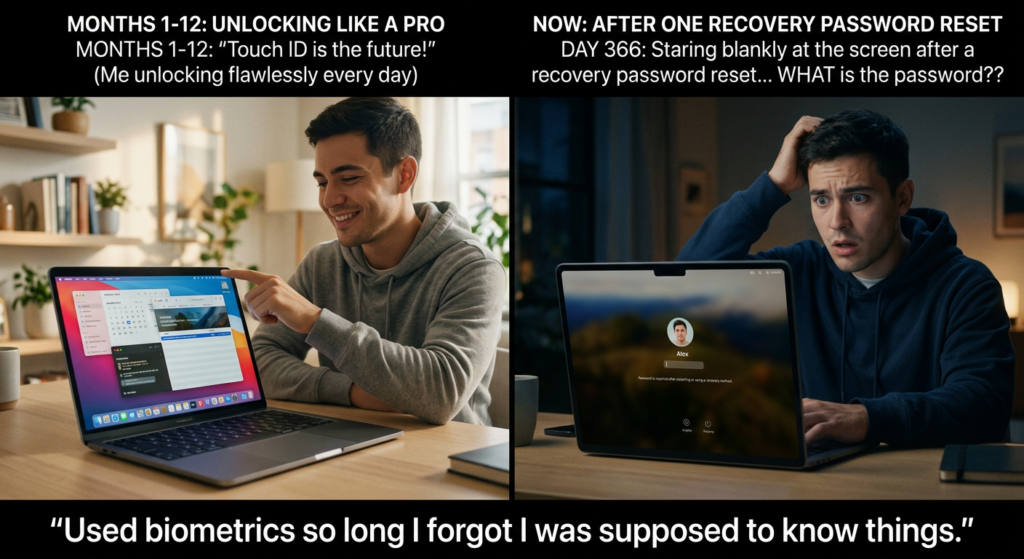
The first defense is simple and boring: know the password you actually use to log in to the Mac. A recent field report described getting locked out partly because Touch ID had replaced real password recall in daily use. That is anecdotal, but it is a believable pattern. Biometric convenience is good. Password amnesia is not. (Arkoinad)
The second defense is enabling iCloud Keychain deliberately, not casually. Apple’s support materials say that iCloud Keychain keeps passwords, passkeys, credit card information, and Wi-Fi passwords updated across approved devices and uses end-to-end encryption to protect them. That does not solve every local keychain problem, but it gives you a second recovery channel that many users are grateful to have only after something goes wrong. (Apple Destek)
The third defense is having real backups. Apple explicitly says keychain files can be restored from Time Machine. That one fact turns a disaster into a technical exercise. Without it, you are depending on whatever state is left in the live directory and whatever secrets happen to have synced elsewhere. (Apple Destek)
The fourth defense is preserving recovery material for FileVault and your Apple Account correctly. Apple’s support page on forgotten Mac login passwords makes a crucial distinction: a FileVault recovery key is not the same as an Apple Account recovery key. On recent systems, Apple also notes that the FileVault recovery key for a Mac may be visible in the Passwords app on another device signed into the same Apple Account. That is the kind of detail that sounds trivial until the day you need it. (Apple Destek)
The fifth defense, especially in enterprise environments, is separating mental models. Your Active Directory password, your local Mac login password, your FileVault recovery mechanism, and your keychain state are related but not interchangeable. The more your environment blends them operationally, the more likely users are to enter the wrong password at the worst possible time.
For security teams, make this workflow testable before you need it
In a personal incident, keychain recovery is a bad afternoon. In an enterprise incident, it can become a recurring support pattern with measurable cost. The expensive part is often not the file recovery itself. It is the post-recovery validation: confirming whether browser credentials, VPN profiles, app tokens, certificates, Wi-Fi, and user workflows still function, while preserving an audit trail of what changed and why.
That is where standardization matters. A security or IT team should have a runbook that separates local login keychain recovery, iCloud Keychain reapproval, backup restoration, and manual credential rebuild. It should also define the evidence to capture before any destructive reset, the validation targets after recovery, and the point at which the old local keychain is declared unrecoverable rather than endlessly retried. Apple’s own documentation provides the boundary conditions. Your runbook provides the operational discipline. (Apple Destek)
For teams that already automate authorized validation work, a platform such as Penligent can be useful around the edges of this problem, not as a shortcut through Apple’s protections, but as a way to standardize evidence capture, post-recovery verification, and workflow handoff in larger credential-related incidents. The line that matters is the same one Apple enforces: automation can help validate and document what recovered, but it does not replace the old keychain password or bypass the recovery boundary. (Penligent)
The short answer hidden inside all the detail
If you reset your Mac password and your Apple Keychain appears to be gone, do not begin by resetting the keychain again.
Begin by preserving ~/Library/Keychains. If you still know the old password, look for the old keychain file, add it back through Keychain Access, and prove what is still there before making any destructive changes. If you have a backup, restore the old file to a safe location and test it. If you no longer know the old password, stop treating the local login keychain as the likely recovery path and move your attention to iCloud Keychain, trusted devices, backups, and manual credential rebuilding. Apple’s own documentation supports that exact split. (Apple Destek)
The part that feels harsh is also the part that protects you. The same system that makes recovery inconvenient is the system that makes silent credential theft harder.
Further reading
- Apple Support, If you forgot your Mac login password (Apple Destek)
- Apple Support, If you need to update your keychain password on Mac (Apple Destek)
- Apple Support, Delete a keychain in Keychain Access on Mac (Apple Destek)
- Apple Support, Copy keychains to another Mac (Apple Destek)
- Apple Support, Set up iCloud Keychain (Apple Destek)
- Apple Platform Security, Keychain data protection (Apple Destek)
- Apple Platform Security, iCloud Keychain security overview (Apple Destek)
- Apple Platform Security, Secure iCloud Keychain recovery (Apple Destek)
- Apple Security Content, CVE-2017-7150 in macOS High Sierra (Apple Destek)
- Apple Security Content, CVE-2024-54490 in macOS Sequoia 15.2 (Apple Destek)
- Apple Security Content, CVE-2025-31213 in iCloud Keychain logging exposure (Apple Destek)
- Apple Security Content, CVE-2026-28864 keychain-item access issue (Apple Destek)
- Recent field report, Recover Apple Keychain (Arkoinad)
- Penligent, Hardening Against Brute Force, Practical Controls and Engineering Strategies (Penligent)


 Turkish
  English
  German
  French
  Spanish
  Portuguese
  Japanese
  Korean
  Hindi
Hindi  Arabic
  Hebrew