
The right AI pentesting tool for Windows should fit both your machine and the test you need to finish. A native application, a Python project and a Docker-based agent have different setup costs. None is a useful choice if it cannot reach your authorized target, use the correct account or show what actually happened.
Start with one decision: can this tool complete a small, read-only test on an application you control, while leaving enough evidence for you to check its conclusion? This guide explains a documented Windows setup and a two-account API evaluation. It is not a benchmark or a claim that the Penligent client was installed and tested for this article.
Choose the execution model before the product
| Option | What you must resolve | What to prove before extending the trial |
|---|---|---|
| Native Windows desktop client | Supported CPU, installer trust, Python configuration, account access and worker location. | A bounded task starts, the intended account is used, and its action history supports the result. |
| Python or command-line agent | Supported Python release, isolated dependencies, model authentication and tool permissions. | The maintained execution mode works on your environment; a successful package install alone is insufficient. |
| Docker or WSL-based toolchain | Additional runtime, mounts, networking, resource limits and where credentials enter the container. | The worker can reach the authorized application without receiving unnecessary host access. |
| Browser-hosted testing service | Target connectivity, private-network access, data handling and the difference between a scan and authenticated testing. | It can test the particular workflow, not merely retrieve the public homepage. |
This is a setup framework, not an assertion that every AI tool supports every option. Check the current upstream documentation for the exact product and release. A desktop interface also does not prove that model inference or all testing stays on your computer.
Build a short Windows evaluation stack
You do not need several autonomous tools for the first task. One candidate plus an inspectable request-replay baseline is often enough to determine whether the generated conclusion matches the traffic.
| Candidate or baseline | Verified Windows setup fact | Role in this evaluation |
|---|---|---|
| Penligente | The documented distribution is Windows x64 with an EXE installer and a configured Python executable. | Evaluate the documented project, task-control and evidence workflow. Do not assume Windows ARM support. |
| Suite Eructo | PortSwigger lists Windows Intel 64-bit and ARM64 in its system requirements. | Use an HTTP proxy/replay baseline to inspect account context and responses. Product compatibility does not establish that every AI capability is included in every edition. |
| ZAP | En official download page lists Windows installers and Java 17 or later for Windows. | A conventional proxy and automation baseline, not an interchangeable claim of autonomous AI testing. Configure active checks only when explicitly authorized. |
These are documented operating facts, not timed installation results or a finding-quality ranking. Choose the candidate whose operating model fits the task, and use the same account-specific controls when comparing evidence.
Check Windows and CPU support first
As checked on November 5, 2026, Penligent’s official installation documentation lists a Windows x64 installer. Do not treat that as a Windows ARM support statement. The reviewed material did not establish a minimum Windows release, RAM requirement or tested virtual-machine configuration.
Open Settings → System → About and record Windows edition, version and system type. An ARM-based Windows machine needs an explicit compatibility answer before installation; x64 emulation availability is not the same as vendor support. On a managed laptop, confirm that installing a security tool and making requests to the proposed target are allowed by your organization.
Download through the official product entry point, not a repackaged installer, an ad or a link copied from an old tutorial. The documented sequence is to download the Windows .exe and open it. That is a workflow description, not an endorsement of bypassing Windows security controls. If SmartScreen, endpoint protection or your administrator blocks the file, stop and investigate provenance. Do not disable protection globally to make the evaluation proceed.
Record the downloaded filename and client version in your evaluation notes. A local SHA-256 hash can identify your exact file, but without a trusted vendor reference it does not prove authenticity. This article does not claim to have verified a signature or installed the linked build.
Resolve the Python executable, not just a Python command
Penligent’s environment instructions include a Python Executable Path field and a Save action. Use the full path to the interpreter you intend the application to use. A terminal command succeeding does not prove that an application launched from the desktop uses that same interpreter.
py -3 -c "import sys, platform; print(sys.executable); print(sys.version); print(platform.machine())"These commands describe your installed Python; they do not install it. If py is unavailable, check your approved Python installation or IT software catalog. If you have multiple environments, run the interpreter you actually want, copy the printed executable path into the client configuration, then save it. The bundled demonstration in this content package requires Python 3.9 or later; that requirement belongs to the demonstration, not a newly inferred minimum for Penligent.
Do not assume that adding Python to PATH fixes all problems. A Windows Store alias, another virtual environment or a terminal-only configuration can leave the client pointing elsewhere. The useful diagnostic is the full interpreter path and version, not a screenshot of a command prompt containing the word Python.
Make the first task a two-account authorization check
Use a disposable application or approved staging environment with synthetic data. Create Account A and Account B, each owning a different project. Write down the expected access policy before the tool sends requests: each account should retrieve its own project but not the other account’s protected fields.
Choose exactly two known resource paths. Do not begin with crawling, password guessing or a broad scan. The following is an illustrative request matrix; your application’s real route names and authorization rules replace the examples.
| Identity | Resource | Expected property | What to retain |
|---|---|---|---|
| Account A | Known project A | Successful authorized read. | Request, identity context and selected response fields. |
| Account B | Known project B | Successful authorized read. | A separate positive control for Account B. |
| Account A | Known project B | Access denied without protected project data. | Status plus body excerpt; compare with Account B’s control. |
| Account B | Known project A | The reverse boundary also holds. | The same evidence, with the active account explicitly identified. |
| No account | Known project A | Unauthenticated access is denied. | A fresh request without inherited cookies or bearer credentials. |
OWASP’s Broken Object Level Authorization guidance explains why permission must be checked for the specific requested object. A positive control matters: a denial caused by expired credentials, a proxy error or the wrong route does not prove that the application enforces its intended boundary.
For manual comparison in PowerShell, call curl.exe explicitly. Older Windows PowerShell environments can resolve rizo as an alias; Microsoft documents the Windows PowerShell web-request behavior. Keep real credentials out of screenshots, shared transcripts and shell history. Use synthetic credentials for a demonstration.
# Only for the optional synthetic localhost fixture supplied with this guide.
# Start the fixture separately; never point these demo tokens at a real service.
curl.exe -i -H "Authorization: Bearer demo-alpha-only" http://127.0.0.1:8765/projects/p-alpha
curl.exe -i -H "Authorization: Bearer demo-alpha-only" http://127.0.0.1:8765/projects/p-beta
The local fixture is an optional reproducibility aid, not a prerequisite for evaluating your own authorized staging application. Its expected responses are an allowed 200 followed by a denied 404, with no project fields in the denied body. A production application may intentionally use 403 instead. Judge the documented permission rule and data returned, not one preferred denial code.
Create the project with a bounded instruction
The documented Penligent first-project flow uses New Project, Project Name, Test Target, Skill Selection y Confirm and Create Project. Treat these as a starting point for a scoped brief, not permission to test an entire organization.
Test only my approved staging origin and the two project-read paths I supply. Use only the two synthetic accounts. Record both own-project controls, then the two cross-account checks and an unauthenticated request. Do not change data, enumerate additional objects, visit another host or install packages. If connectivity or authentication fails, stop and report the untested cases. Return sanitized requests, responses, active-account context and limitations.
Follow the live task rather than waiting for a polished final summary. The documented interface provides an Agent Console for context and questions and a per-task interruption control. Check the action trail before giving new instructions. A queued task is not necessarily running. If an unexpected host, identity or write operation appears, interrupt and correct the scope instead of letting the agent continue for the sake of finishing.
Debug reachability before spending the task allowance
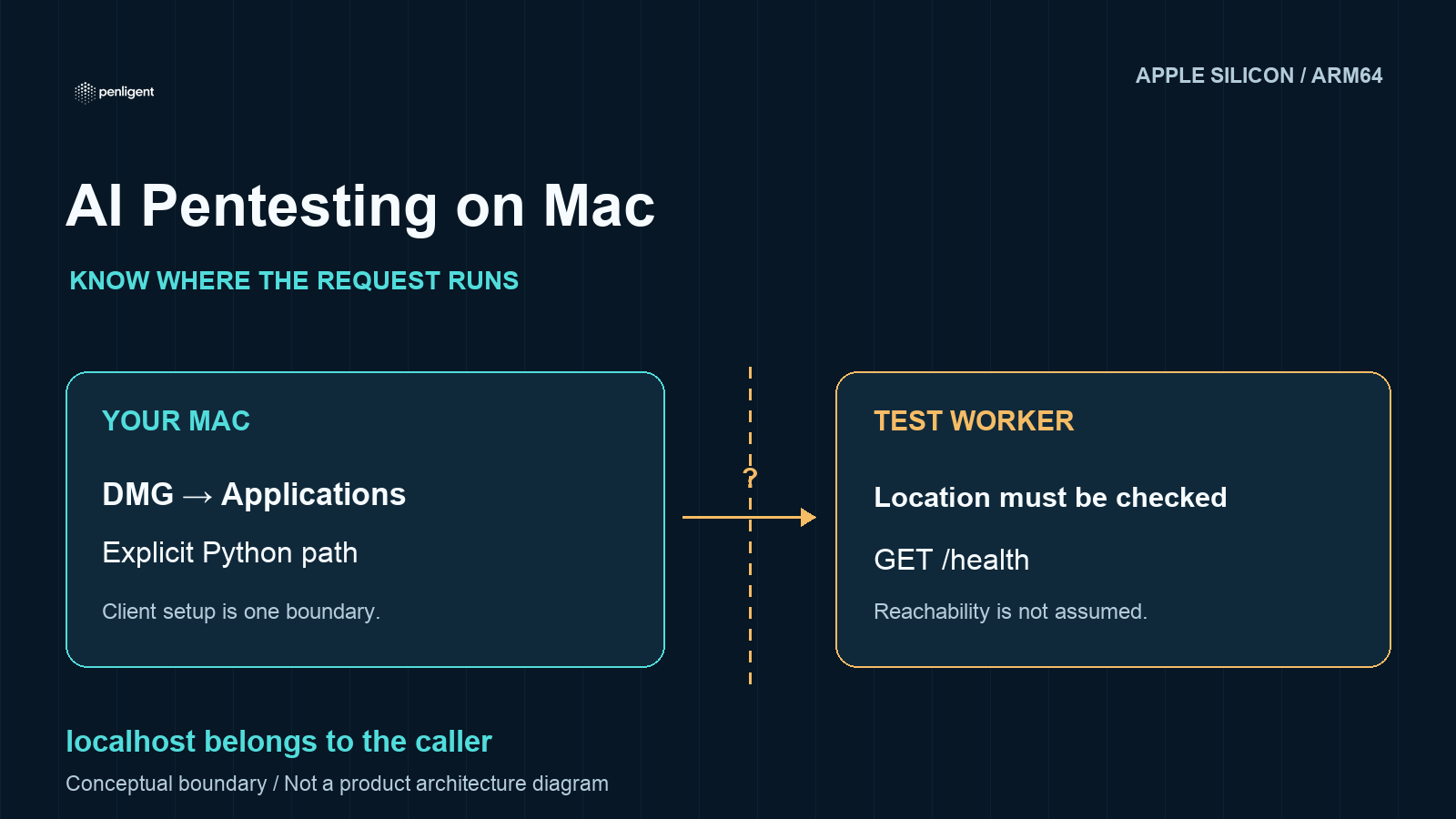
127.0.0.1 means the machine or network namespace executing the request. If a worker runs remotely or in a container, its localhost may not be your Windows desktop. Record a connectivity limitation rather than describing a network failure as a security result. Do not expose your demonstration server publicly or turn off the firewall to force a successful screenshot.
For an approved staging target, verify that your browser and intended execution environment can reach the same origin. Note proxy, VPN and certificate requirements. Do not paste a production session into an unrelated model or worker merely because it is convenient. Before authenticated testing, determine who receives credentials, where evidence is stored and which components make outbound model calls.
Separate a free task from a complete paid workflow
Public plan details checked on November 5 list one test task on Free. They list report export and task retesting under Pro. A free task must not be presented as a promise of a free PDF export, unlimited retests or a fixed number of complete assessments. The credit top-up described for the initial task is not equivalent to buying another task or unlocking every Pro capability.
Before starting, use the maintained AI pentesting cost and trial guide to check the current allowance and plan boundaries. Pick a small test you can interpret with that allowance, and record the visible balance before and after. No universal credits-per-endpoint number is established by this guide.
Keep a result you can defend
A useful first result identifies the target, client build, Python path, active account, expected policy, actual request, response and remaining gaps. A tool may find no issue and still produce a valuable evaluation if those records show that it ran the intended checks. Conversely, an impressive severity label is not proof if the account context and response cannot be reconstructed.
Review the Penligent demonstration video for product context, then compare it with the evidence from your own bounded task. The video is not evidence that your Windows configuration, trial entitlement or target is supported.
Continue only when the setup is understood, the worker reaches the authorized target, account switching is reliable and the evidence is useful. That is a better buying threshold than installing several tools and accepting whichever produces the longest report.
Method: installation and plan statements were checked against public vendor documentation on November 5, 2026. The request scenario is a synthetic evaluation design. The optional localhost fixture was self-checked with Python on macOS; no Penligent client installation, Windows product test or comparative performance test was performed.
 Spanish
 English
 German
 French
 Portuguese
 Japanese
 Korean
 Hindi
 Arabic
 Turkish
 Hebrew