
Penligent Logo
  • Pricing
  • Docs
  • AI Pentest
  • Pentest Report
service@penligent.ai

Product

  • Pricing
  • FAQ

Resources

  • Docs
  • Hacking Labs
  • Tech Support

Company

  • About

Legal

  • Terms
  • Security
  • Privacy
Language
English
English中文日本語한국어EspañolFrançaisPortuguês (Brasil)DeutschРусскийالعربية
© 2026 Future Share LLC.
Disclaimer: Penligent is for authorized security testing only. You must have explicit permission from the target owner. Unauthorized use is prohibited and solely your responsibility.

Penligent User Guide · Docs Overview

Quick Links
Quick Start
Feature Guide
Global OverviewProject OverviewAgent Work StatusTarget OverviewAttack Path ManagementKey FindingsTool ResultsAsset ManagementScheduled TasksExport a Project ReportSettings

Penligent User Guide

Feature Guide

The project navigation bar provides views for the project overview, agent work status, target overview, attack path management, key findings, and tool results. Use Export Report on a project page to export a report for that project.
Scheduled Tasks

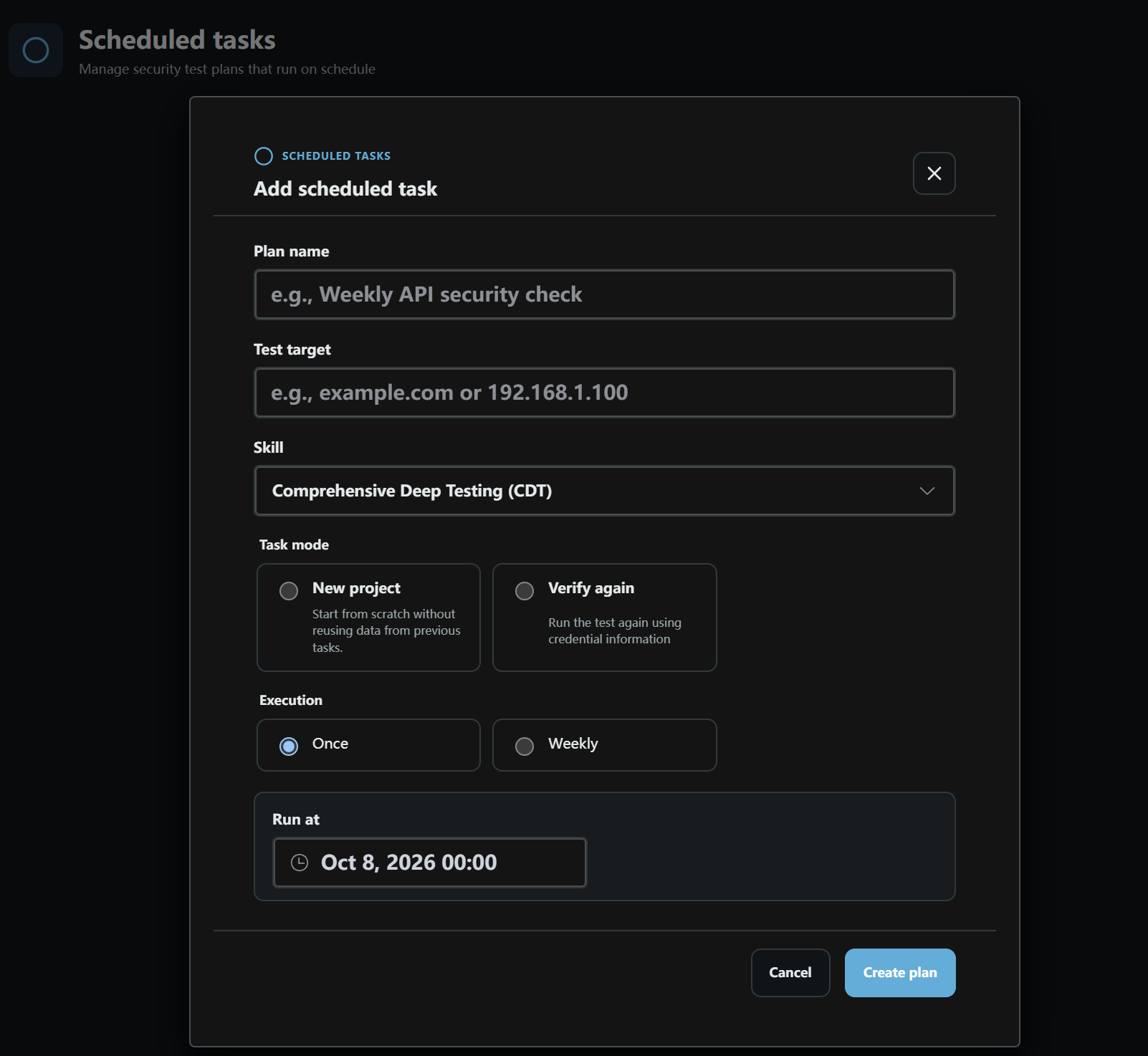
Add a scheduled task

Create a scheduled test from Scheduled tasks:

  1. Enter a Plan name and Test target, then select a testing plan under Skill.
  2. Choose a Task mode:
  • New project: Start from scratch without reusing data from previous tasks.
  • Verify again: Run the test again using credential information.
  1. Under Execution, choose Once or Weekly.
  2. Set the run time based on the selected execution option. The screenshot shows Run at for the Once option.
  3. Click Create plan to create the schedule, or Cancel to discard it.