
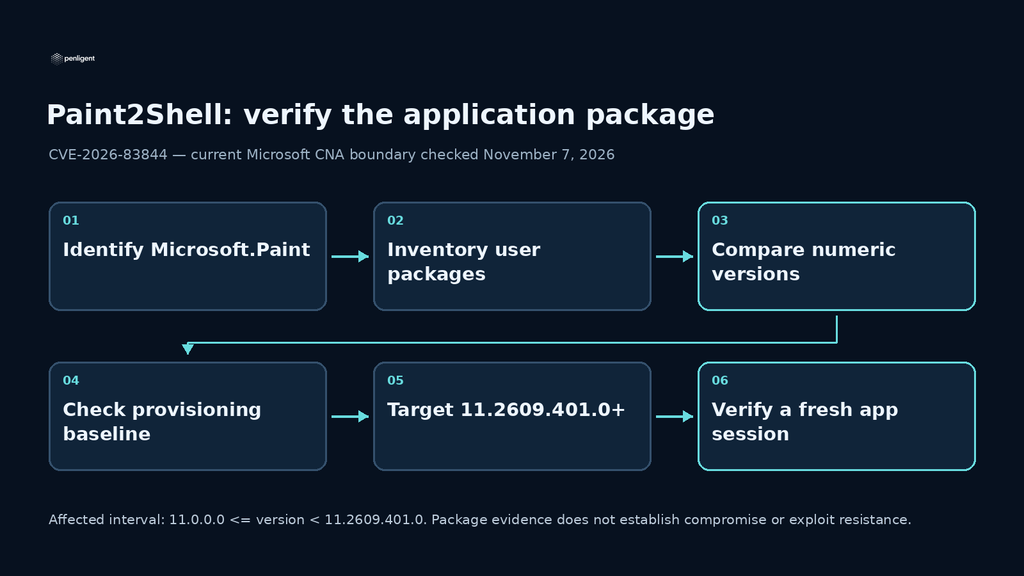
Updated November 7, 2026. Paint2Shell is an informal name used in reporting about CVE-2026-83844. Microsoft’s current CNA record, updated November 6, now marks Paint versions from 11.0.0.0 up to but not including 11.2609.401.0 as affected. The checks below use 11.2609.401.0 as the minimum current boundary. A nickname does not establish a public exploit, a particular image-file trigger, or compromise of an endpoint.
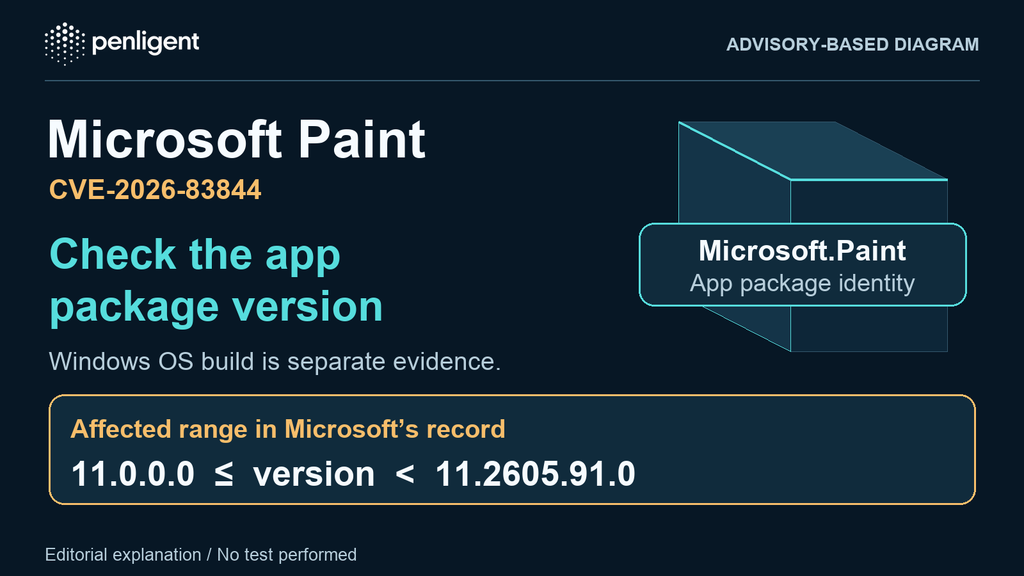
Check Paint as an application package, separately from Windows cumulative updates. Review each applicable user registration and the provisioning baseline; an up-to-date operating system alone does not close the application finding. The older boundary, 11.2605.91.0, remains visible only in the historical illustration retained below.
Explore Penligent for authorized testing with reviewable evidence. Use Microsoft package evidence to decide this CVE’s update status.
A Paint security update is complete when the corrected application is available in the intended user context and a fresh session works normally. A current Windows build or a successful deployment assignment does not answer that question. For CVE-2026-83844, inventory the Paint package, check any image that provisions it, and retain exceptions until their state is known.
What Microsoft confirms
Microsoft’s CNA record identifies Windows Paint remote code execution caused by an out-of-bounds read. It marks 11.0.0.0 ≤ Paint version < 11.2609.401.0 as affected. The excluded upper boundary, 11.2609.401.0, is the minimum version used for the checks below; use an approved, supported Microsoft release at or above it.
The record was published October 13, 2026 and updated November 6. Its CVSS 3.1 score is 8.1, with a network vector, high attack complexity and no privileges required: AV:N/AC:H/PR:N/UI:N. This is not described as a local privilege-escalation flaw. The UI:N rating means the scored scenario requires no user action. The public record does not document a specific malicious file format or delivery route, or establish that Paint listens for network connections. Opening a malicious image is therefore not a confirmed prerequisite. The linked Microsoft advisory remains the vendor reference.
Collect registered packages and the provisioning baseline
First confirm package identity. Microsoft’s RemoteApp documentation identifies Store Paint as Microsoft.Paint. Check that identity against a known device and your approved software catalog. A broad name search can mix unrelated applications; an empty exact query cannot account for an unidentified legacy or differently packaged installation.
Use an authorized administrator session for all-user and image inventory. These commands request information; they do not install, remove or register packages. Keep collection errors rather than converting them into an empty success result.
# Packages registered for user contexts on this device
Get-AppxPackage -AllUsers -Name Microsoft.Paint -ErrorAction Stop |
    Select-Object Name, Version, PackageFullName, PackageUserInformation

# Packages configured in the running image for new users
Get-AppxProvisionedPackage -Online -ErrorAction Stop |
    Where-Object { $_.DisplayName -eq 'Microsoft.Paint' } |
    Select-Object DisplayName, Version, PackageName
Get-AppxPackage describes packages installed in user profiles; -AllUsers requires administrator permissions. Inspect registration information for the intended users, not just the newest row. Get-AppxProvisionedPackage describes packages configured for new users. Its -Online switch means the running local image, not an Internet query. For a mounted reference image, use its approved -Path instead.
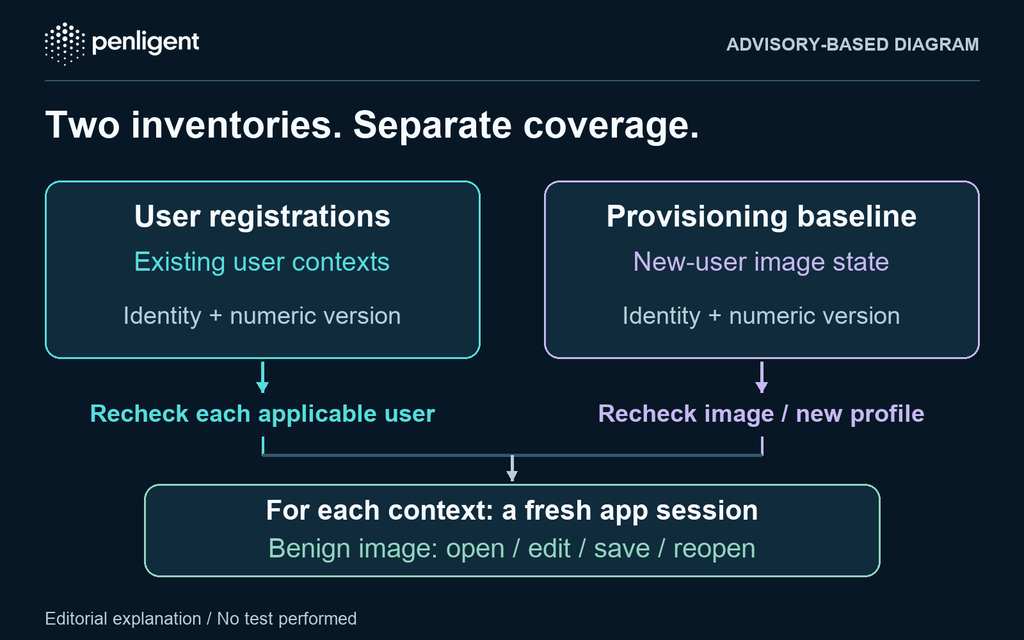
Treat these as separate evidence planes. Updating one existing user does not demonstrate what a new profile receives. Updating a golden image does not demonstrate that a retained user registration or old app process changed. Record the device or image ID, collection time, context and package identity; redact user identifiers in shared reports.
Explore Penligent for authorized security testing and evidence-based validation.
| Observed state | Record it as | Next evidence needed |
|---|---|---|
| Any applicable user registration is in the affected interval. | App update required. | Correct that context, repeat inventory and start a fresh app session. |
| User packages meet the boundary; applicable provisioning is older. | Image or new-user exception. | Corrected baseline or verified enrollment behavior, followed by an approved new-profile or new-instance check. |
| All applicable package rows meet the boundary. | Version condition met. | Fresh-session functional check and reconciliation of missing contexts. |
| Successful complete inventory finds no target package. | Not installed in the verified scope. | Record the scope and confirm identity; do not label it an updated installation. |
| Access denied, collection failure, unparsable version or unresolved identity. | Unknown. | Repair collection or resolve identity. Keep it out of the verified total. |
Compare the version as numbers
Use four numeric components. Text ordering can mishandle components with different digit counts. Microsoft’s Version comparison documentation defines comparison in major, minor, build and revision order. The function below applies both official bounds to one collected value. It is an illustrative classifier, not a collection result.
function Get-PaintVersionState {
    param([AllowNull()][string]$Value)
    if ($Value -notmatch '^\d+\.\d+\.\d+\.\d+$') { return 'Unknown' }
    try { $candidate = [version]$Value } catch { return 'Unknown' }
    if ($candidate -lt [version]'11.0.0.0') {
        return 'OutsideRecordedRange-ReviewIdentity'
    }
    if ($candidate -lt [version]'11.2609.401.0') { return 'Affected' }
    return 'AtOrAboveBoundary'
}
For example, 11.2609.400.0 is below the current boundary, 11.2609.401.0 equals it, and 11.2609.402.0 is above it. These are numeric comparison examples, not claims about available releases. A version below the lower bound is outside the recorded interval, but needs identity and support review before any safety conclusion. A malformed or missing value remains unknown.
Update through the channel that owns the application
On an individually managed device, Microsoft’s Store update guidance directs users to open Microsoft Store and select Check for Updates. Follow the available interface and confirm Paint finishes updating. Then collect the package version again; an update button or notification is not the acceptance record.
For managed devices, use the existing approved Store or application-distribution process. Microsoft’s Intune documentation distinguishes app types, user/system contexts and update policies. Verify the actual Paint catalog entry, assignment, delivery status and local package. Do not change organization-wide Store policy or mix deployment contexts just to force one check to pass.
For restricted fleets, retain the approved package’s provenance and deployment record. For VDI, maintain the reference image and account for existing profiles or session hosts separately. If provisioning is intentionally absent because enrollment installs Paint later, verify that documented path instead of treating absence as a corrected image. Track offline devices and failed content delivery as exceptions with owners.
Verify a fresh session with an ordinary file
Have users save their work, then close and reopen Paint after the update. Refresh a managed session or reboot when the servicing process requires it; do not terminate unsaved sessions or assume every Paint update requires a full device restart. Repeat the applicable inventory after rollout and confirm the intended user is launching the expected package.
Use a trusted, ordinary test image to check opening, a small edit, saving a new copy and reopening that copy. Record the package version, user context, time and result. This checks normal operation after servicing. It is not an exploit test and does not independently prove that the vulnerability cannot be triggered. No malformed image or downloaded proof-of-concept is needed.
Close the maintenance item only when every in-scope device, applicable user and provisioning path has a recorded disposition. Keep updated, not installed and unknown distinct. The companion worksheet is blank so it can hold actual evidence rather than assumed successful results.
Keep patch evidence separate from incident conclusions
An affected package establishes a maintenance need, not compromise. If suspicious activity warrants investigation, preserve relevant endpoint, delivery and crash records under the response process. A crash, a filename or an update assignment alone cannot establish exploitation or its absence.
For teams separately reviewing how an authorized testing workflow records its work, the Penligent product demonstration provides general context. It is not a Paint exploit demonstration, an endpoint-patching procedure or evidence that this update succeeded. Keep Paint acceptance tied to the package, provisioning and session observations above.
Method: AI-assisted review of primary sources and an original maintenance decision framework, checked November 7, 2026. No Windows commands, Paint files, endpoint updates, exploit tests or Penligent tasks were executed for this article.
Historical illustration and version change
The previous diagram is retained below as an earlier illustration. Its printed cutoff is not the current acceptance threshold. The current Microsoft record and the executable comparison above take precedence.
 English
 German
 French
 Spanish
 Portuguese
 Japanese
 Korean
 Hindi
 Arabic
 Turkish
 Hebrew