
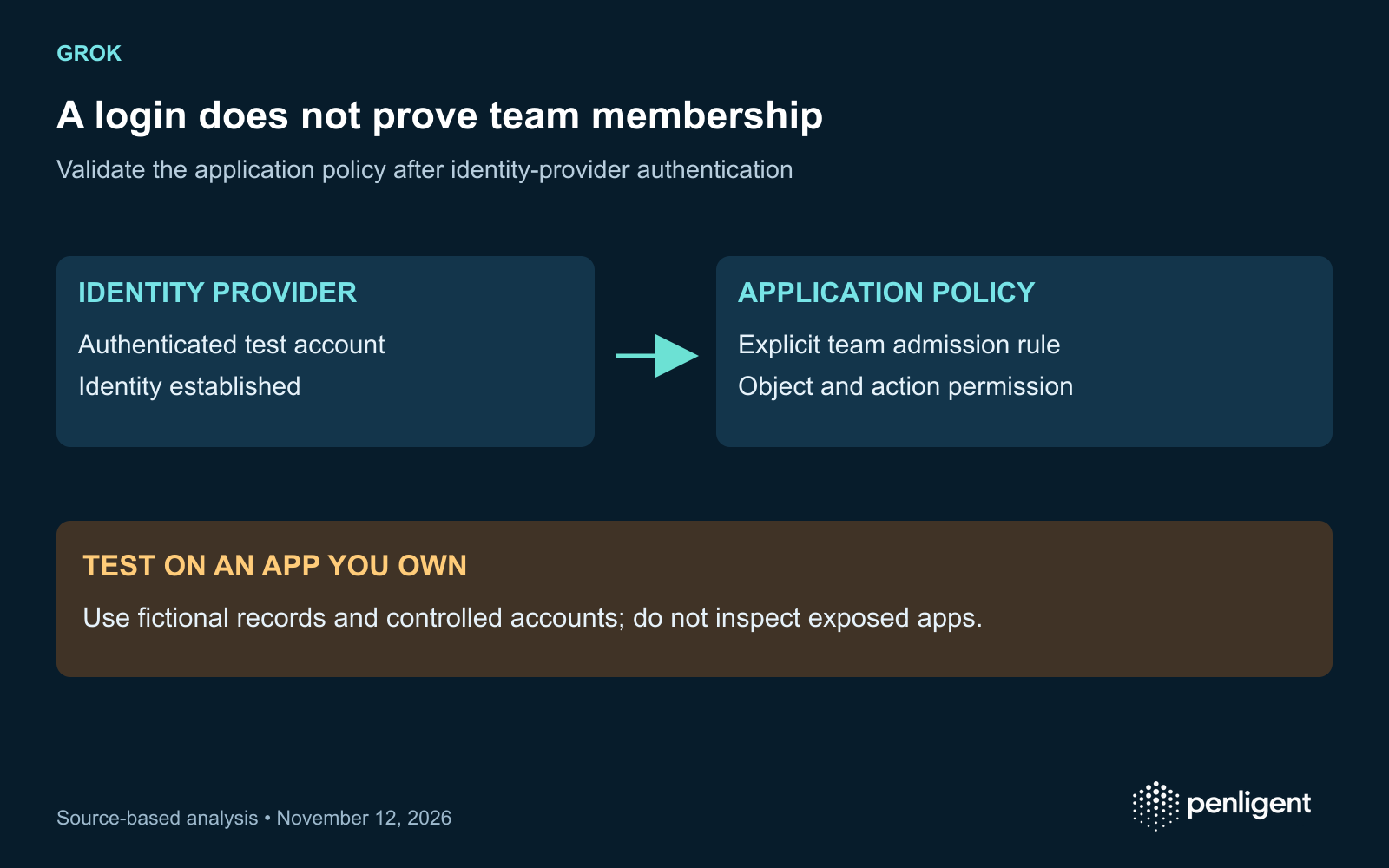
A sign-in button does not establish that a Grok app restricts access to your team. Its publication setting controls who can reach the app, while application logic still needs to decide which signed-in users may read or change each record. Test these as separate boundaries before putting internal information into an AI-built application.
Read the GhostShares 2 findings within their tested scope
Claroc’s November 10 GhostShares 2 research reports publicly accessible Grok apps and describes two applications the researchers built themselves. In their publishing account, the proposed access setting was “Anyone with the link.” In their own team application, an uninvited Google account could read and modify the synthetic records. The researchers expressly limit their write testing to their own apps.
The report also records a different vendor account of publication steps and employee defaults. Treat the researcher’s default-setting observation as an account-specific result, not proof that every account has the same setting. A deployment owner can resolve the operational question directly: inspect the current access choice for the actual app and test the resulting boundary with authorized fixtures.
Create the smallest useful test application
Use an app you own and a dataset created solely for the assessment. Make the markers recognizable and meaningless outside the test: for example, two fictional customer records labeled tenant A and tenant B. Prepare the owner, an invited colleague and an external test account you control. Keep a signed-out browser context separate from the signed-in accounts.
Write down which actions each identity should be allowed to perform. If the app is a team tool, decide whether invitation, organization membership or another explicit policy controls admission. A successful identity-provider login answers who authenticated; it does not establish that the user belongs to the application’s intended team.
| Identity | Expected read | Expected change | Pruebas |
|---|---|---|---|
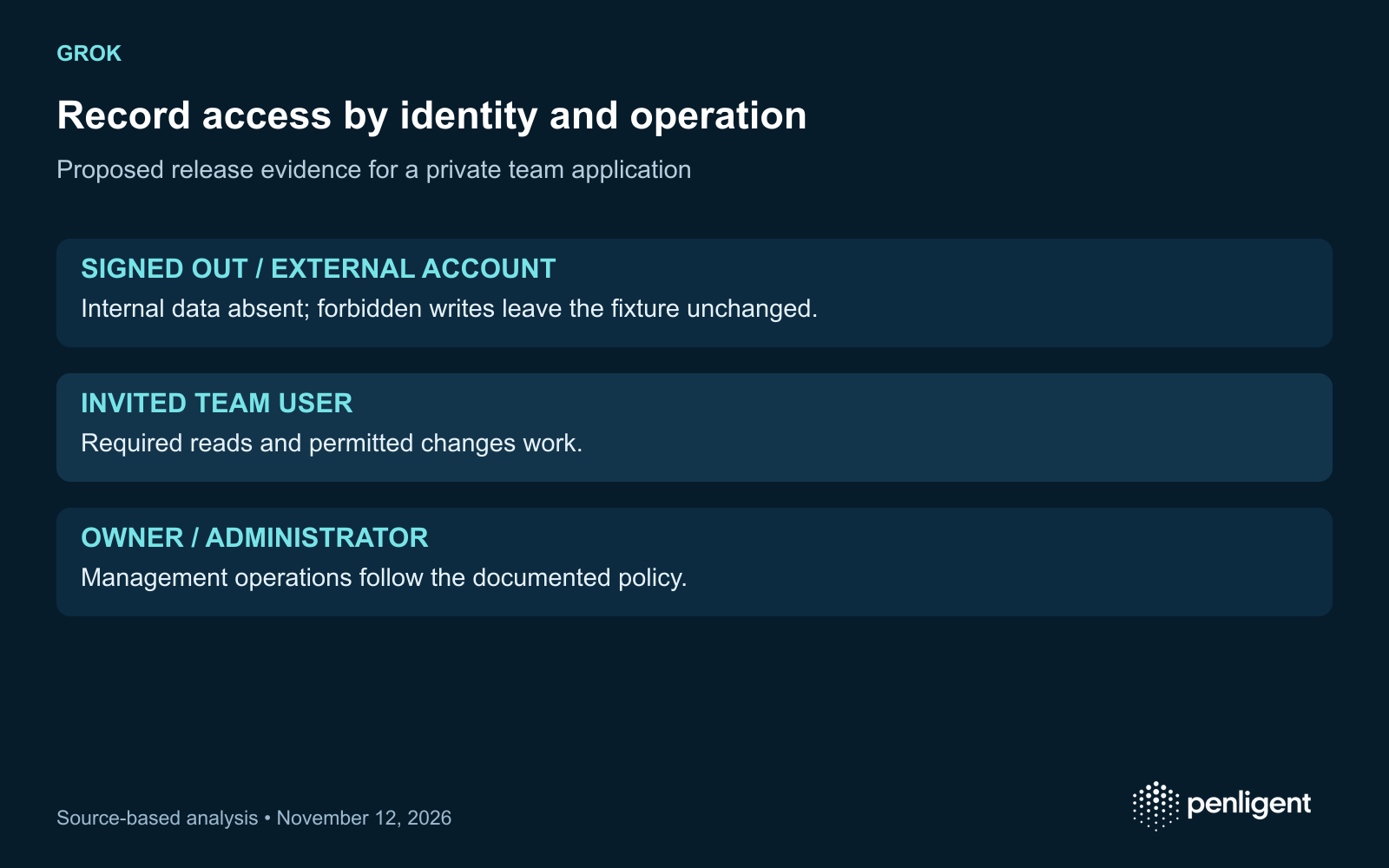
| Signed-out visitor | According to the chosen publication policy | Denied for internal records | Actual page and documented data response |
| External controlled account | Denied unless explicitly authorized | Denied | Membership decision and unchanged synthetic record |
| Invited team user | Only the intended team dataset | Only permitted operations | Returned markers and resulting state |
| Owner or administrator | Documented management access | Documented management operations | Administrative action and audit record |
Verify the data boundary behind the page
Start with an allowed read so you know the fixture and identity are correct. Then try the denied read through the app’s ordinary documented workflow. Inspect whether restricted synthetic data reaches the browser. Hiding a table or navigation item is insufficient when the data response still contains it.
For a controlled write, use a disposable field or record within the agreed test scope. Compare state before and after through the owner’s normal view. An error screen after a change is different from a denial before the change. Record which account performed the action and which object changed; a screenshot of the login page alone cannot establish write protection.
Check browser-delivered scripts and configuration from your own application for embedded credentials or internal data. Public application code is delivered to visitors by design. Record the presence of a sensitive value without copying it into a report or model conversation, then follow the credential owner’s revocation procedure if necessary. Do not collect keys or personal records from other people’s exposed apps.
Recheck access when sharing or generated code changes
A new prompt can change the application’s schema, login behavior or authorization code. Keep the last accepted app revision and sharing policy with the test record. Reopen the relevant cases after a new dataset, invitation rule, export path or publishing choice is introduced. The old result describes the old state.
If an internal app is unexpectedly open, use the platform’s supported privacy or unpublishing controls and preserve the evidence needed for response. Restricting access prevents further exposure through that path; it does not determine whether data was previously accessed. Review available logs and the data classes involved with the organization’s security owner.
Use a release record a builder and reviewer can share
App owner / revision / review time
Publication setting and intended audience
Test identities: owner, invited user, external user, signed out
Synthetic records and expected access policy
Read result: permitted and forbidden markers
Write result: before / after / denied without change
Unresolved paths: exports, background jobs, stale links
Recheck triggers: code, data, membership or publication changes
For an application security assessment, make these cases part of the acceptance terms. Ask for identity-aware evidence and a repair retest rather than a generic “AI-generated app is secure” declaration. The assessment should tell you which access rule was tested and which paths remain unknown.
Use the synthetic sharing matrix to define an authorized application assessment. If considering Penligente, verify that the intended account roles and evidence workflow fit the engagement.
The official Penligent 3.0 video below demonstrates the general product workflow. It illustrates product use; the article’s assessment proposals and source findings are evaluated separately.
Method: AI-assisted review of the linked primary sources, checked November 12, 2026, with an original assessment framework. No exploit, production target or customer environment was tested for this article.
 Spanish
 English
 German
 French
 Portuguese
 Japanese
 Korean
 Hindi
 Arabic
 Turkish
 Hebrew